> ## Documentation Index
> Fetch the complete documentation index at: https://docs.ulm.m1amdocs.com/llms.txt
> Use this file to discover all available pages before exploring further.
# Configure an Email Provider
Using the Digital Identity Management and your own SMTP email service, send test email(s) to verify the dispatch/delivery in your non-production environment. Next, configure the external provider with your organization's SMTP settings to send notifications to your users with your custom service. From the **Admin console** > **Branding** > **Email Provider** page you:
* Send test email using the Digital Identity Management email service in a non-production
* Configure a SMTP provider and send test email in a non-production
* Configure a external SMTP (external) provider and send test email in a production environment
1. **Working in Non-Production Environments**
2. Navigate to **Admin console** > **Branding** > **Email Provider** .
1. Select **Send Test** to generate/deliver an email (notification message) to a destination/receiver email address.
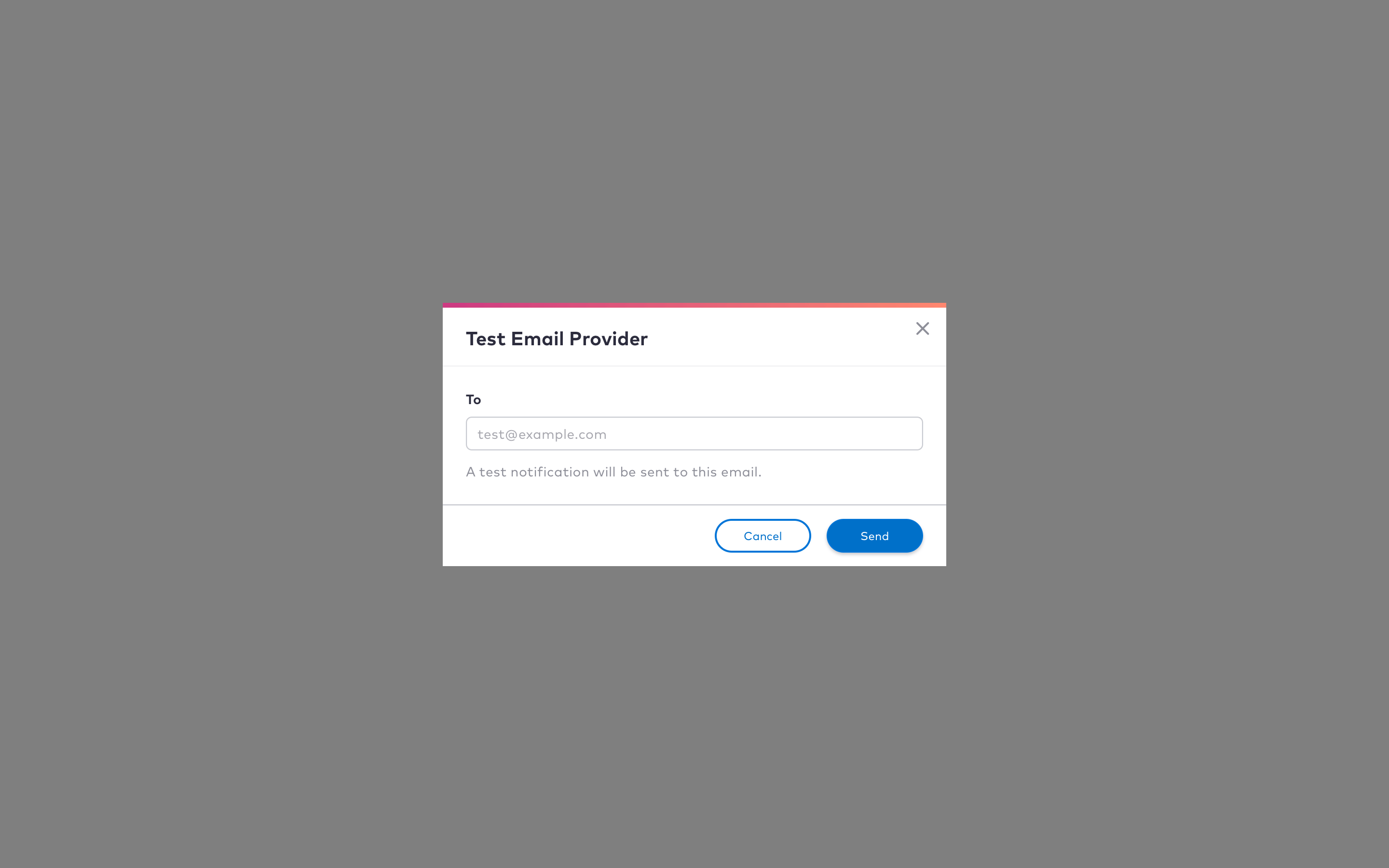 2. Enter the destination email address in the **To** field.
3. Click **Send** to send the email.
4. Click **Cancel** to end the test.
The destination/email address receives an email notification message from the Digital Identity Management service.
3. Toggle the **Use your own email provider** switch to configure a SMTP email provider with your SMTP settings.
2. Enter the destination email address in the **To** field.
3. Click **Send** to send the email.
4. Click **Cancel** to end the test.
The destination/email address receives an email notification message from the Digital Identity Management service.
3. Toggle the **Use your own email provider** switch to configure a SMTP email provider with your SMTP settings.
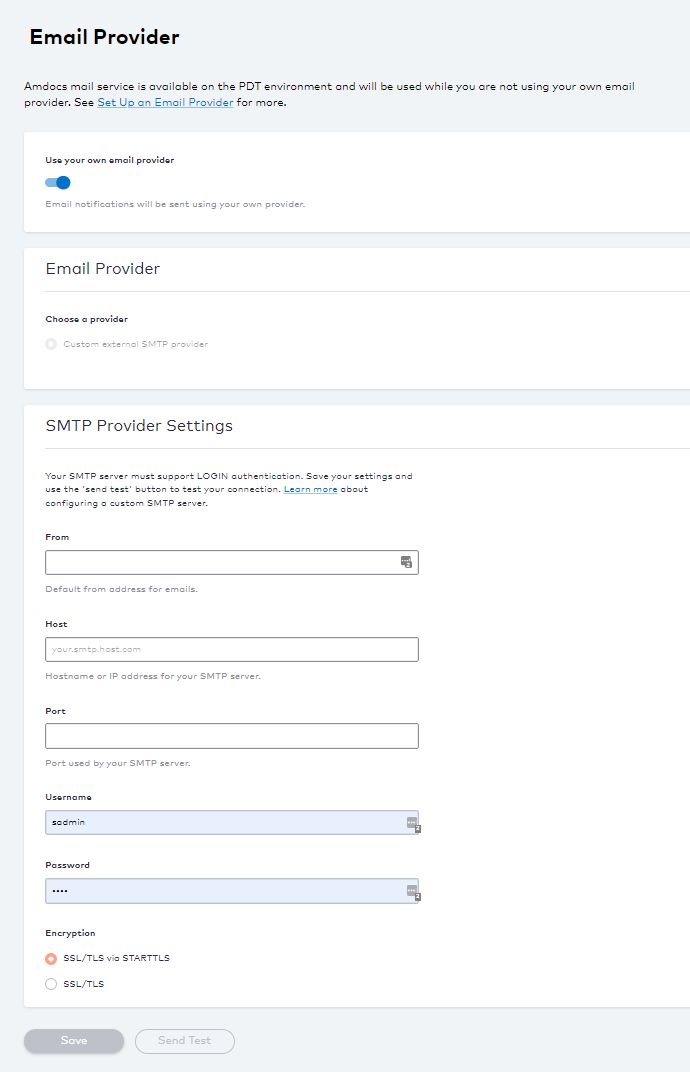 4. From the **Choose a provider** options, select **Custom external SMTP Provider**.
5. Enter your **SMTP Provider Settings**. See [Provider Email Fields](providerEmailFields_r) table for more guidance regarding the fields.
6. Click **Save**.
7. Select **Send Test** to verify your connection.
1. Enter a destination email address ([test@example.com](mailto:test@example.com)).
2. Click **Send**.
3. Select **Cancel** to stop the test.
A successful toast message appears when the test message is sent. If the dispatch/delivery fails, a message appears with more information.
A test email is sent to the email address specified in the **To** field.
8. **Working in Production Environments**
9. Navigate to **Admin console** > **Branding** > **Email Provider**.
10. Select **Custom external SMTP Provider**.
4. From the **Choose a provider** options, select **Custom external SMTP Provider**.
5. Enter your **SMTP Provider Settings**. See [Provider Email Fields](providerEmailFields_r) table for more guidance regarding the fields.
6. Click **Save**.
7. Select **Send Test** to verify your connection.
1. Enter a destination email address ([test@example.com](mailto:test@example.com)).
2. Click **Send**.
3. Select **Cancel** to stop the test.
A successful toast message appears when the test message is sent. If the dispatch/delivery fails, a message appears with more information.
A test email is sent to the email address specified in the **To** field.
8. **Working in Production Environments**
9. Navigate to **Admin console** > **Branding** > **Email Provider**.
10. Select **Custom external SMTP Provider**.
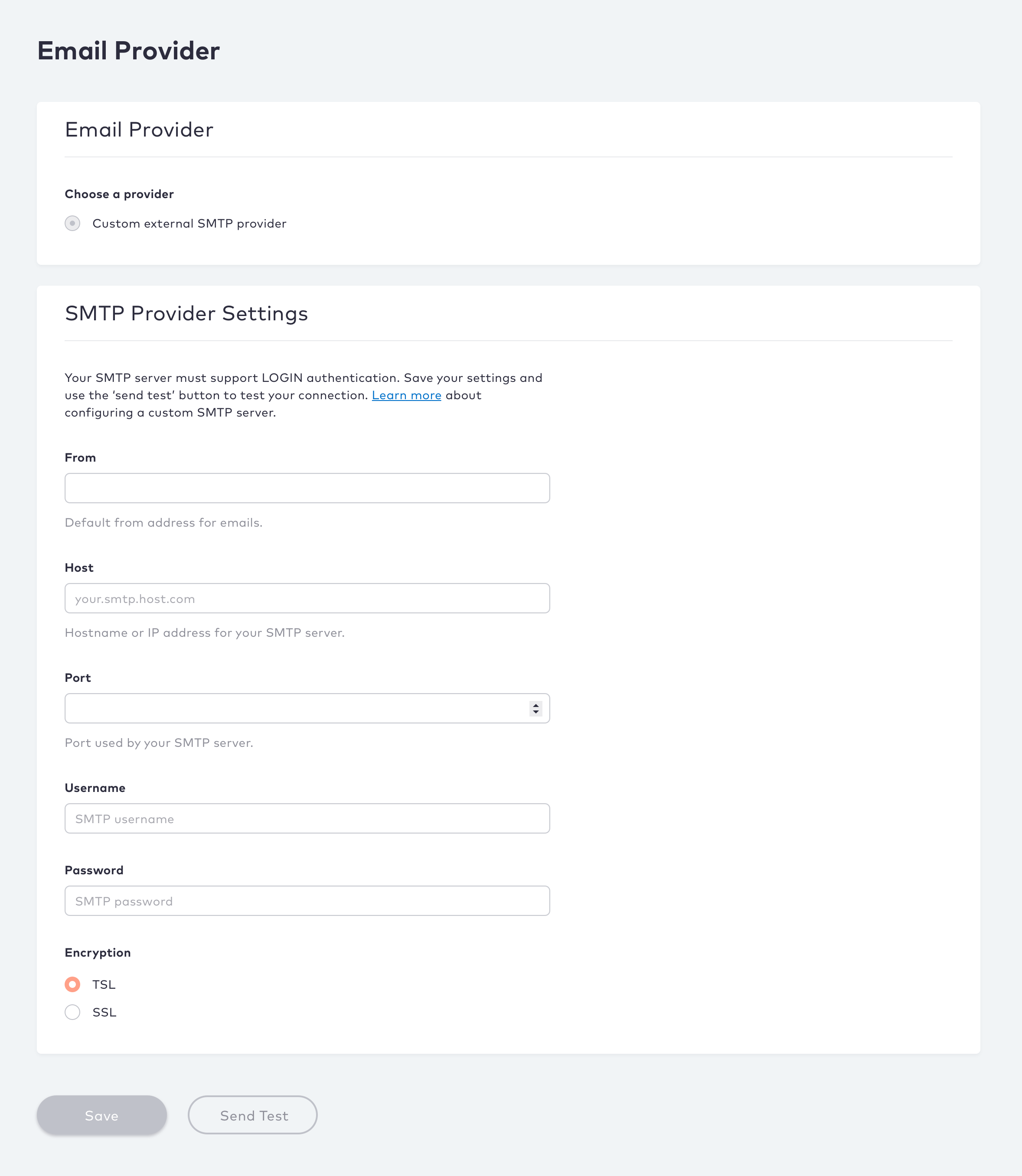 11. Enter your SMTP settings. See the table below for more guidance regarding the fields.
12. Click **Save**.
13. Select **Send Test** to verify your connection.
1. Enter a destination email address ([test@example.com](mailto:test@example.com)).
2. Click **Send**.
3. Select **Cancel** to stop the test.
A custom external email provider is configured and test emails are sent to the destination/receiver email address.
* **[Provider Email Fields](../topics/providerEmailFields_r)**
**Parent topic:**[About Service Providers](../topics/provider)
This documentation is built and hosted on [Mintlify](https://mintlify.com), a developer documentation platform.
11. Enter your SMTP settings. See the table below for more guidance regarding the fields.
12. Click **Save**.
13. Select **Send Test** to verify your connection.
1. Enter a destination email address ([test@example.com](mailto:test@example.com)).
2. Click **Send**.
3. Select **Cancel** to stop the test.
A custom external email provider is configured and test emails are sent to the destination/receiver email address.
* **[Provider Email Fields](../topics/providerEmailFields_r)**
**Parent topic:**[About Service Providers](../topics/provider)
This documentation is built and hosted on [Mintlify](https://mintlify.com), a developer documentation platform.