> ## Documentation Index
> Fetch the complete documentation index at: https://docs.ulm.m1amdocs.com/llms.txt
> Use this file to discover all available pages before exploring further.
# Assign User Roles
As an admin user or a care representative with the appropriate permissions, you can update or remove roles from a user. The roles available for assignment are dependent on your organizational requirements and can be configured when provisioning your tenant.
1. Sign in to the Care console. By default, the **Find a User** screen appears.
2. [Find and select](sgFindUser) a desired user. The selected user's **Identity** page opens.
3. In the **Roles and Permissions** pane, click the  pencil edit icon.
A Select... dropdown appears.
4. Click the Select... dropdown and choose the relevant role(s) to assign to the selected user by checking the box beside the role name.
pencil edit icon.
A Select... dropdown appears.
4. Click the Select... dropdown and choose the relevant role(s) to assign to the selected user by checking the box beside the role name.
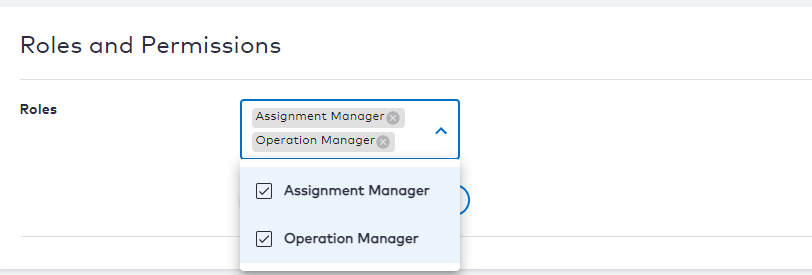 5. Click one of the following options:
* **Save** to save the changes immediately.
* **Cancel** to revert the changes and return to the user's **Identity** page.
6. To remove a role, click the
5. Click one of the following options:
* **Save** to save the changes immediately.
* **Cancel** to revert the changes and return to the user's **Identity** page.
6. To remove a role, click the  **x** icon beside the role to remove the entry and then click **Save**.
The role(s) of the selected user have been assigned or updated. When the user signs in and authenticates, the role(s) and associated permissions are embedded with the access token.
**Parent topic:**[User Management](../topics/careAboutUserIdentity)
This documentation is built and hosted on [Mintlify](https://mintlify.com), a developer documentation platform.
**x** icon beside the role to remove the entry and then click **Save**.
The role(s) of the selected user have been assigned or updated. When the user signs in and authenticates, the role(s) and associated permissions are embedded with the access token.
**Parent topic:**[User Management](../topics/careAboutUserIdentity)
This documentation is built and hosted on [Mintlify](https://mintlify.com), a developer documentation platform.