> ## Documentation Index
> Fetch the complete documentation index at: https://docs.ulm.m1amdocs.com/llms.txt
> Use this file to discover all available pages before exploring further.
# Set Up Azure AD (Active Directory) Authentication
* It is recommended that the setup of your Azure account and application be performed twice:
1. Azure staging > Our staging environment
2. Azure production > Our production environment
* The URLs for our staging and production environments are required. Your Amdocs representative can provide you with this information.
1. Register a new App as follows:
1. Log in to your Azure account and navigate to **Azure Active Directory** > **App registrations**.
2. Create a new application by selecting **+ New registration**.
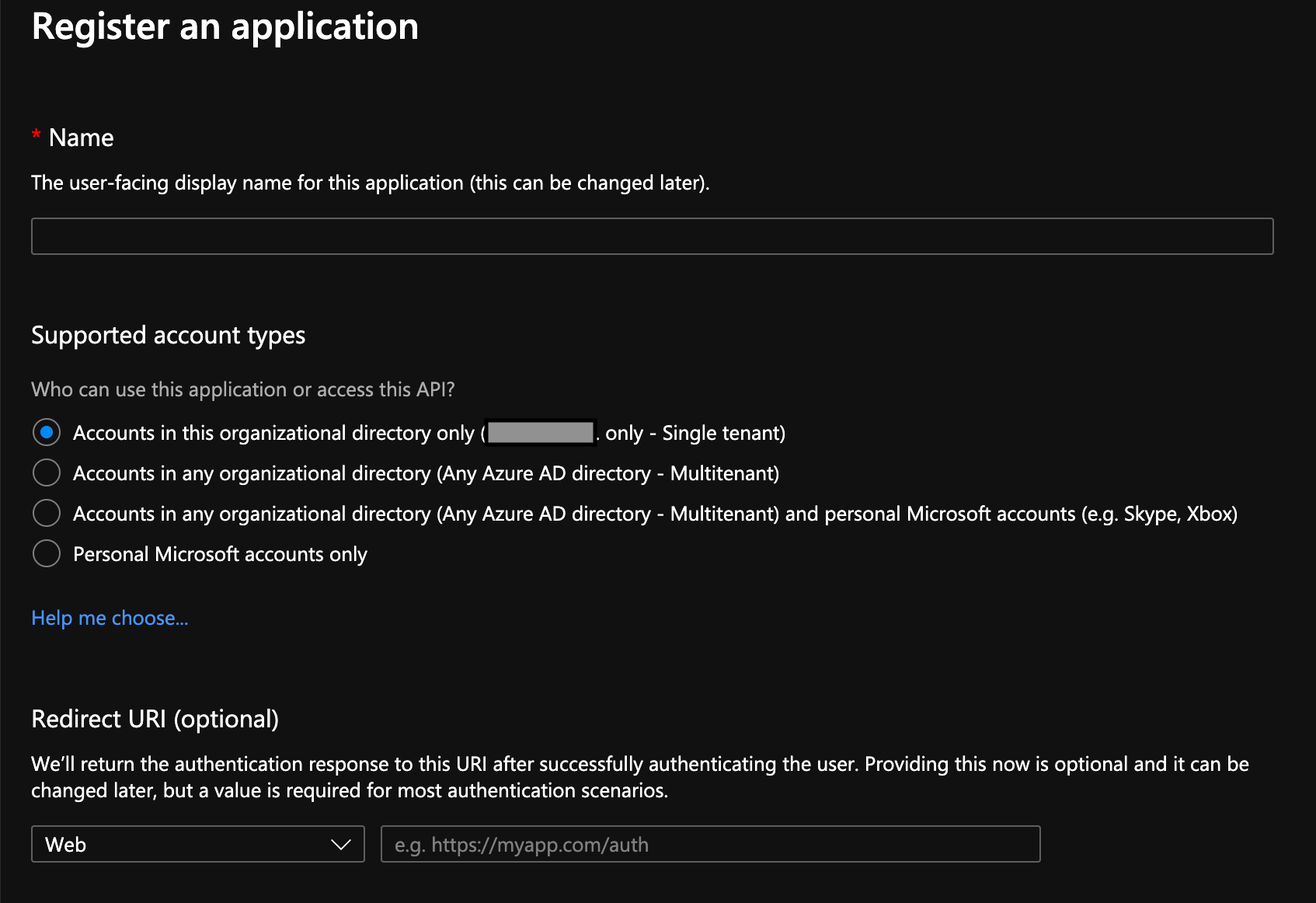 3. Enter a **Name**.
4. Select a **Supported account types** option. Consult your security organization and the Azure documentation. Record this choice because your OIDC Discovery Metadata URL depends on this choice.
5. Leave the **Redirect URI (optional)** field blank. You'll provide this information later.
6. Select **Register**.
The application configuration **Overview** page appears.
2. Generate a Relying Party OAuth Client Secret on the **Overview** page as follows:
1. Select **Certificates & secrets**.
The **Certificates and Secrets** page appears.
2. Click **+ New client secret**.
The **Add a client secret** panel appears.
3. Provide a **Description** and an **Expires** length that follows your security organization’s guidelines in the **Add a client secret** panel.
4. Select **Add**.
5. Copy the **Value** corresponding to the newly-created client secret into a .txt file.
This is the **Relying Party OAuth Client Secret** that you will configure with the platform later.
**Note:** Any changes made to the Client Secret value must be communicated with your Amdocs representative.
3. Configure the Redirect URIs as follows:
1. Select the **Overview** tab.
2. Select **Add a Redirect URI**.
The **Authentication** page appears.
3. Enter a **Name**.
4. Select a **Supported account types** option. Consult your security organization and the Azure documentation. Record this choice because your OIDC Discovery Metadata URL depends on this choice.
5. Leave the **Redirect URI (optional)** field blank. You'll provide this information later.
6. Select **Register**.
The application configuration **Overview** page appears.
2. Generate a Relying Party OAuth Client Secret on the **Overview** page as follows:
1. Select **Certificates & secrets**.
The **Certificates and Secrets** page appears.
2. Click **+ New client secret**.
The **Add a client secret** panel appears.
3. Provide a **Description** and an **Expires** length that follows your security organization’s guidelines in the **Add a client secret** panel.
4. Select **Add**.
5. Copy the **Value** corresponding to the newly-created client secret into a .txt file.
This is the **Relying Party OAuth Client Secret** that you will configure with the platform later.
**Note:** Any changes made to the Client Secret value must be communicated with your Amdocs representative.
3. Configure the Redirect URIs as follows:
1. Select the **Overview** tab.
2. Select **Add a Redirect URI**.
The **Authentication** page appears.
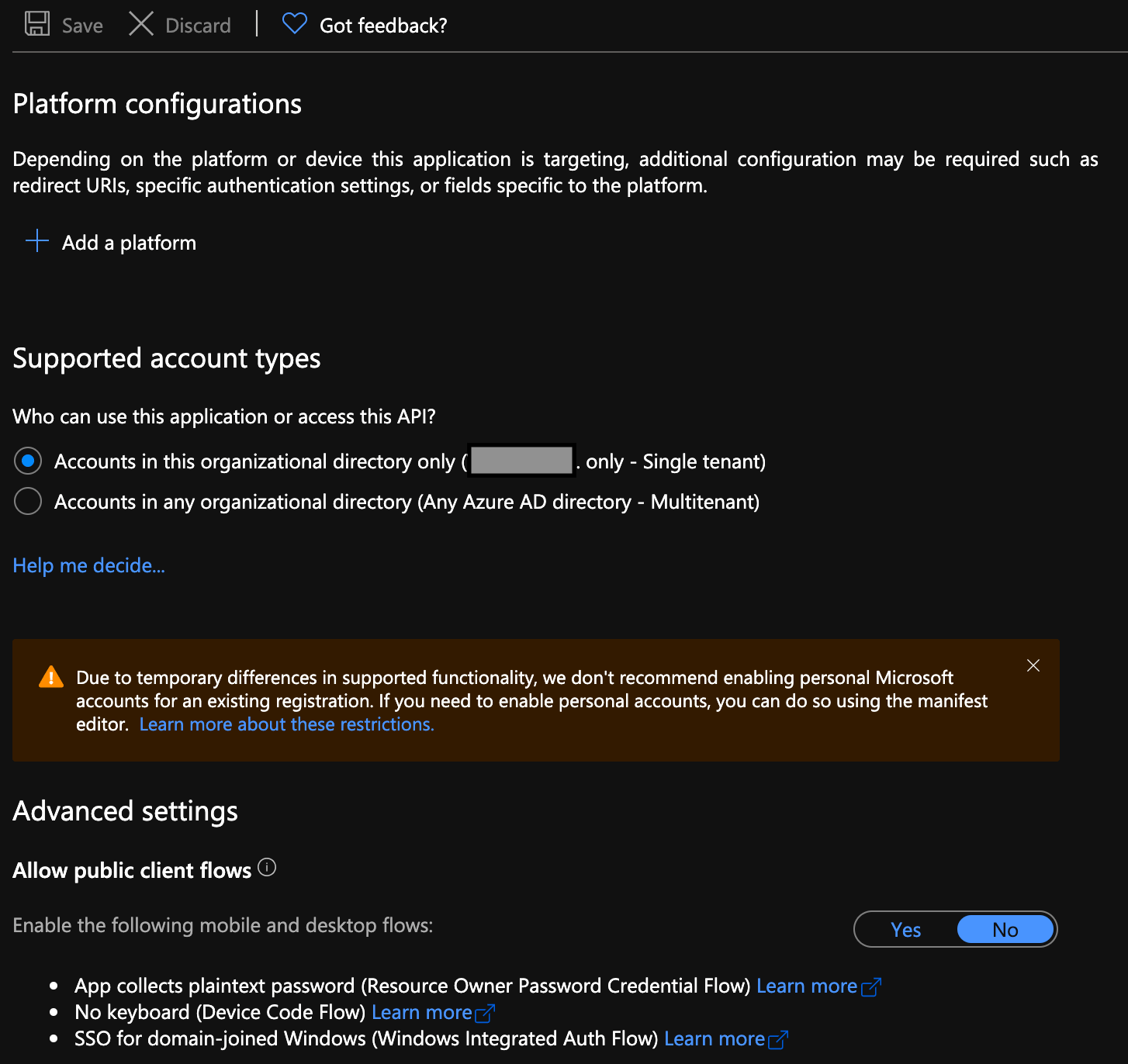 3. Select **Add a platform** under **Platform Configurations**.
The **Configure platforms** panel appears.
4. Select **Web in the Configure platforms** panel.
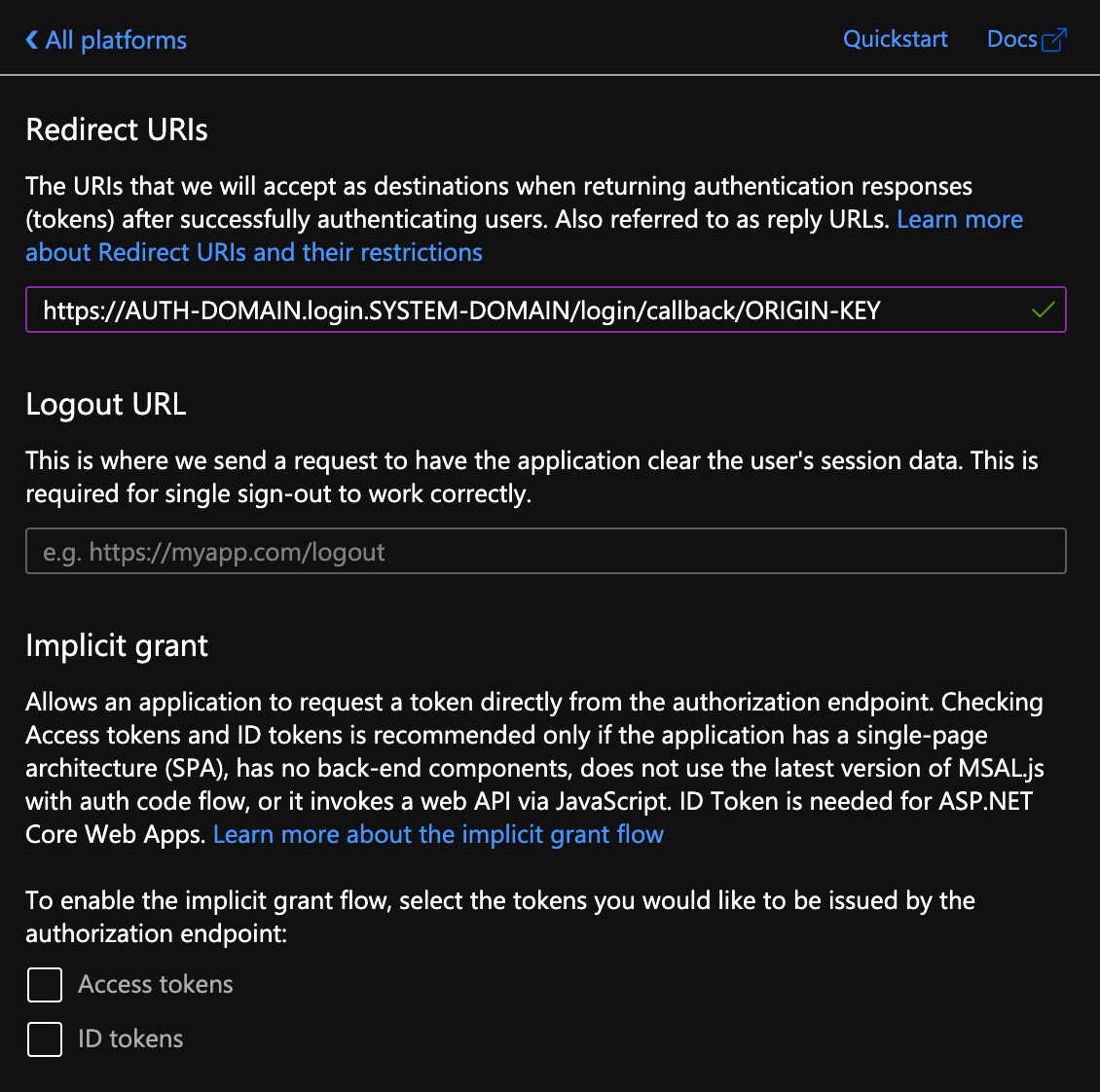
5. Under **Redirect URIs**, enter either our production or staging implementation URL as relevant. To obtain this information, speak to your Amdocs representative.
**Note:** Once you add a URI, select **Add URI** to add any additional URIs.
6. Leave the **Logout URL** field blank.
7. Select the **Access Tokens** and **ID Tokens** check boxes in the **Implicit grant** section.
8. Select **Configure**.
3. Select **Add a platform** under **Platform Configurations**.
The **Configure platforms** panel appears.
4. Select **Web in the Configure platforms** panel.
5. Under **Redirect URIs**, enter either our production or staging implementation URL as relevant. To obtain this information, speak to your Amdocs representative.
**Note:** Once you add a URI, select **Add URI** to add any additional URIs.
6. Leave the **Logout URL** field blank.
7. Select the **Access Tokens** and **ID Tokens** check boxes in the **Implicit grant** section.
8. Select **Configure**.
 4. Return to the **Overview** page.
5. Select **Endpoints** in the top panel.
6. Copy the **OpenID Connect metadata document** to the .txt file.
7. Return to the **Overview** page.
8. Copy the following values to the .txt file.
* Application (client) ID
* Directory (tenant) ID
9. Ensure the .txt file contains the following information:
* Application (client) ID
* Directory (tenant) ID
* Client Secret
* OpenID Connect metadata document
10. Encrypt the .txt file and pass it to your Amdocs representative for integration.
11. Add the users that will use our platform to the newly created application in Azure AD.
**Parent topic:**[Set Up an External IDP](../topics/externalIDPSetup)
This documentation is built and hosted on [Mintlify](https://mintlify.com), a developer documentation platform.
4. Return to the **Overview** page.
5. Select **Endpoints** in the top panel.
6. Copy the **OpenID Connect metadata document** to the .txt file.
7. Return to the **Overview** page.
8. Copy the following values to the .txt file.
* Application (client) ID
* Directory (tenant) ID
9. Ensure the .txt file contains the following information:
* Application (client) ID
* Directory (tenant) ID
* Client Secret
* OpenID Connect metadata document
10. Encrypt the .txt file and pass it to your Amdocs representative for integration.
11. Add the users that will use our platform to the newly created application in Azure AD.
**Parent topic:**[Set Up an External IDP](../topics/externalIDPSetup)
This documentation is built and hosted on [Mintlify](https://mintlify.com), a developer documentation platform.