> ## Documentation Index
> Fetch the complete documentation index at: https://docs.ulm.m1amdocs.com/llms.txt
> Use this file to discover all available pages before exploring further.
# Refreshing Tokens
Once you have obtained access, refresh, and ID tokens from Digital Identity Management you will inevitably need to refresh the access token and ID token when they expire. You can refresh tokens with the following flow, which should be executed by your back end, if you have one.
## Prerequisite - Enabling Refresh Tokens
Digital Identity Management only issues, and accepts the use of, refresh tokens when:
* The requesting client is registered as an OIDC client in the Digital Identity Management Admin web application.
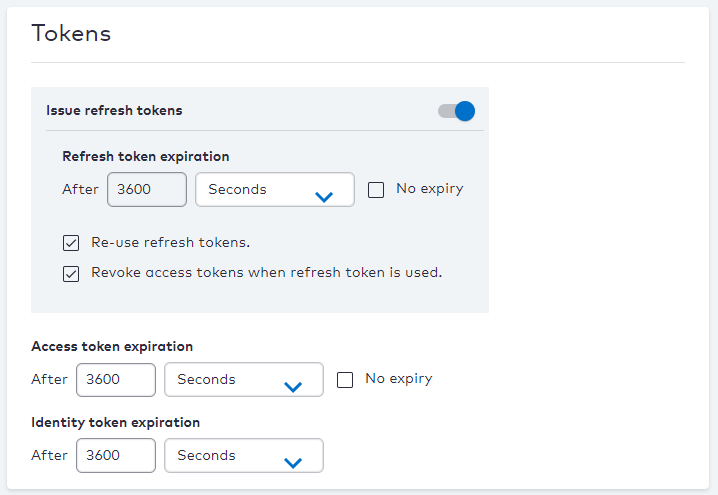
* Refresh tokens are enabled and configured in the **Tokens** section for that OIDC client configuration page.
You or someone in your organization with access to Digital Identity Management Admin must enable Digital Identity Management to issue refresh token, as well as set additional parameters like the refresh token's expiration period (if any).
 If you have more than one registered OIDC client, then you will need to configure the token settings for each individual client.
## Flow Diagram
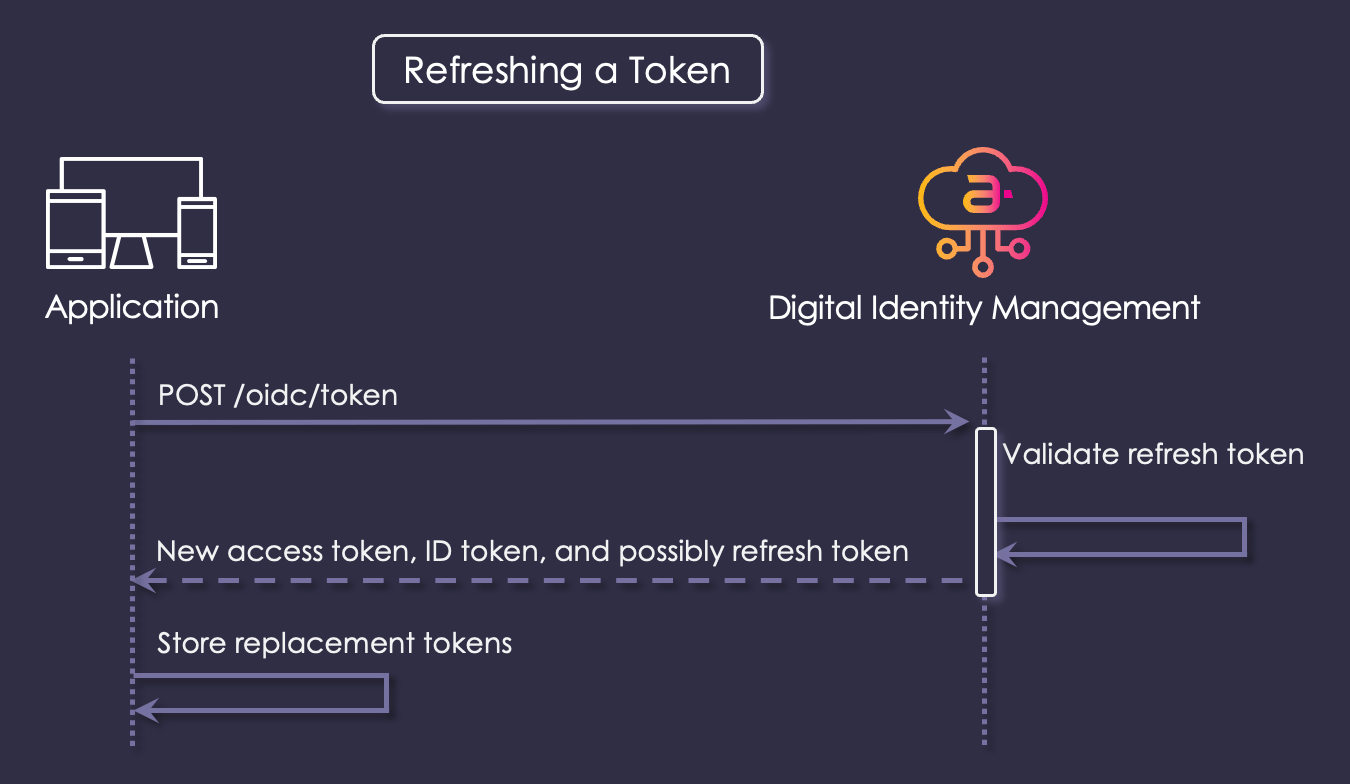
The diagram below represents the interactions between the key actors in this flow:
If you have more than one registered OIDC client, then you will need to configure the token settings for each individual client.
## Flow Diagram
The diagram below represents the interactions between the key actors in this flow:
 ## Interaction Steps
The interaction steps between each actor in the flow are as a follows:
1. The application (preferably its backend, if your application has one) makes a request to Digital Identity Management's `POST /oidc/token` endpoint with its current or expired access token, and the corresponding refresh token. The body of the request is of type `application/x-www-form-urlencoded`, and these are the values to include:
| Parameter | Value |
| - | - |
| `client_id` | **(Optional)** If your relying party is provisioned as **confidential**, then you must populate this field with the client ID of the registered Relying Party. |
| `client_credential` | **(Optional)** If your relying party is provisioned as **confidential**, then you must populate this field with the client secret of registered Relying Party. |
| `grant_type` | Value must be `refesh_token`. |
| `refresh_token` | String value of the refresh token. |
| `scope` | **(Optional)** Scopes to request. If omitted, then the same scopes as the original token are used. Additional scopes cannot be requested using this parameter, only a reduction in the originally-granted scopes. |
2. Digital Identity Management consumes the provided tokens, and verifies that:
* The provided refresh token is valid.
* The scopes requested are a subset of those part of the original authorization request.
* The client credentials (if supplied) are valid.
3. Assuming all validations passed, Digital Identity Management issues a new access token, potentially a new ID token, and potentially also a new refresh token. Digital Identity Management also immediately invalidates the old access token. If a new refresh token was issued, the old refresh token is invalidated as well.
4. Your application stores the new tokens, and begins using them.
**Parent topic:**[Single Sign-On](../topics/ssoIntro)
This documentation is built and hosted on [Mintlify](https://mintlify.com), a developer documentation platform.
## Interaction Steps
The interaction steps between each actor in the flow are as a follows:
1. The application (preferably its backend, if your application has one) makes a request to Digital Identity Management's `POST /oidc/token` endpoint with its current or expired access token, and the corresponding refresh token. The body of the request is of type `application/x-www-form-urlencoded`, and these are the values to include:
| Parameter | Value |
| - | - |
| `client_id` | **(Optional)** If your relying party is provisioned as **confidential**, then you must populate this field with the client ID of the registered Relying Party. |
| `client_credential` | **(Optional)** If your relying party is provisioned as **confidential**, then you must populate this field with the client secret of registered Relying Party. |
| `grant_type` | Value must be `refesh_token`. |
| `refresh_token` | String value of the refresh token. |
| `scope` | **(Optional)** Scopes to request. If omitted, then the same scopes as the original token are used. Additional scopes cannot be requested using this parameter, only a reduction in the originally-granted scopes. |
2. Digital Identity Management consumes the provided tokens, and verifies that:
* The provided refresh token is valid.
* The scopes requested are a subset of those part of the original authorization request.
* The client credentials (if supplied) are valid.
3. Assuming all validations passed, Digital Identity Management issues a new access token, potentially a new ID token, and potentially also a new refresh token. Digital Identity Management also immediately invalidates the old access token. If a new refresh token was issued, the old refresh token is invalidated as well.
4. Your application stores the new tokens, and begins using them.
**Parent topic:**[Single Sign-On](../topics/ssoIntro)
This documentation is built and hosted on [Mintlify](https://mintlify.com), a developer documentation platform.