> ## Documentation Index
> Fetch the complete documentation index at: https://docs.ulm.m1amdocs.com/llms.txt
> Use this file to discover all available pages before exploring further.
# MarketONE Connect 2020.09 - Release Notes
Release Date: September 24, 2020
## Announcements
This release includes the following announcements:
* Connect now supports OAuth 2.0 Device Authorization Grant flows.
* Connect now supports identity-driven purchase and management of subscription services.
* Connect Admin web application now includes the **Settings** screen that Admin Users can access to manage system-wide settings.
## Connect Features
This section describes the key updates in this release.
### Settings Management in Connect Admin
[Connect Admin](https://docs.vindicia.com/bundle/b_connectAdminGuide) is an existing web application that enables a service provider's administrative manager(s) to configure and manage their instance of Connect. More specifically, a Connect Admin user configures OIDC relying parties for single-sign on.
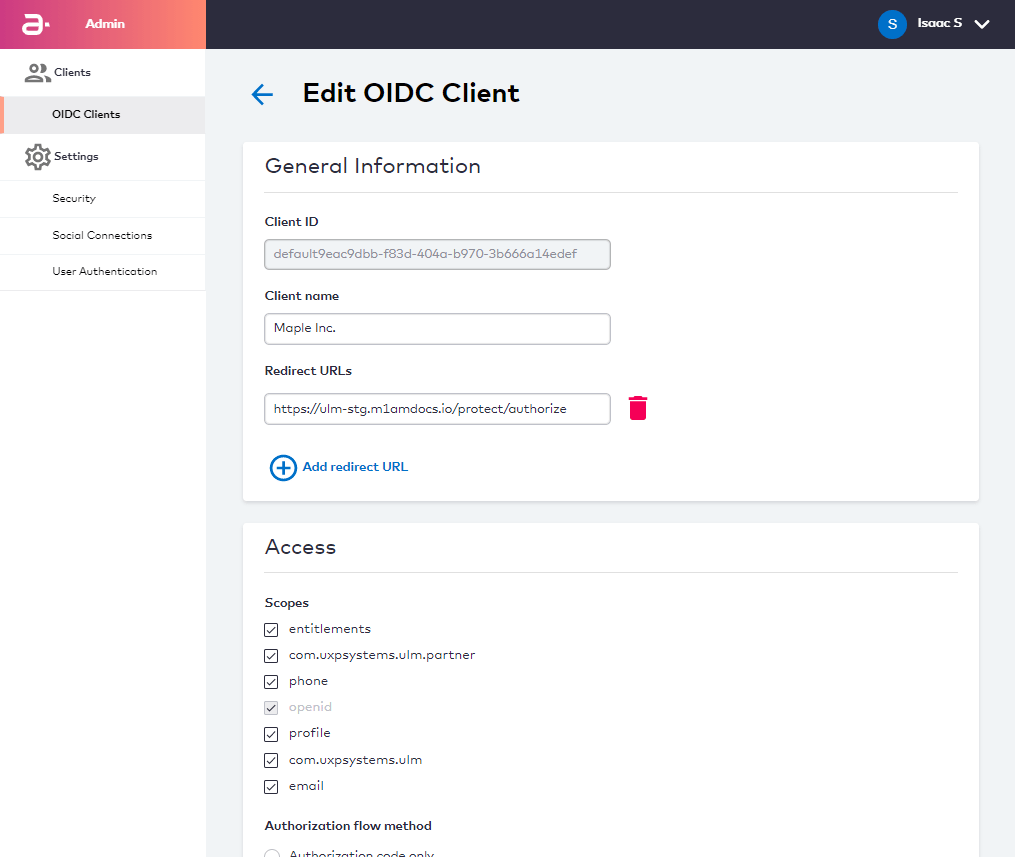 As of the Connect 2020.09 release, the Connect Admin UI now includes a **Settings** section wherein an Admin User can view and modify key application settings that determine platform and User Process behavior. Application settings are grouped under three distinct sections: Security, Social Connections, and User Authentication.
**Security**
Security Settings control platform behavior as it pertains to individual user security.
As of the Connect 2020.09 release, the Connect Admin UI now includes a **Settings** section wherein an Admin User can view and modify key application settings that determine platform and User Process behavior. Application settings are grouped under three distinct sections: Security, Social Connections, and User Authentication.
**Security**
Security Settings control platform behavior as it pertains to individual user security.
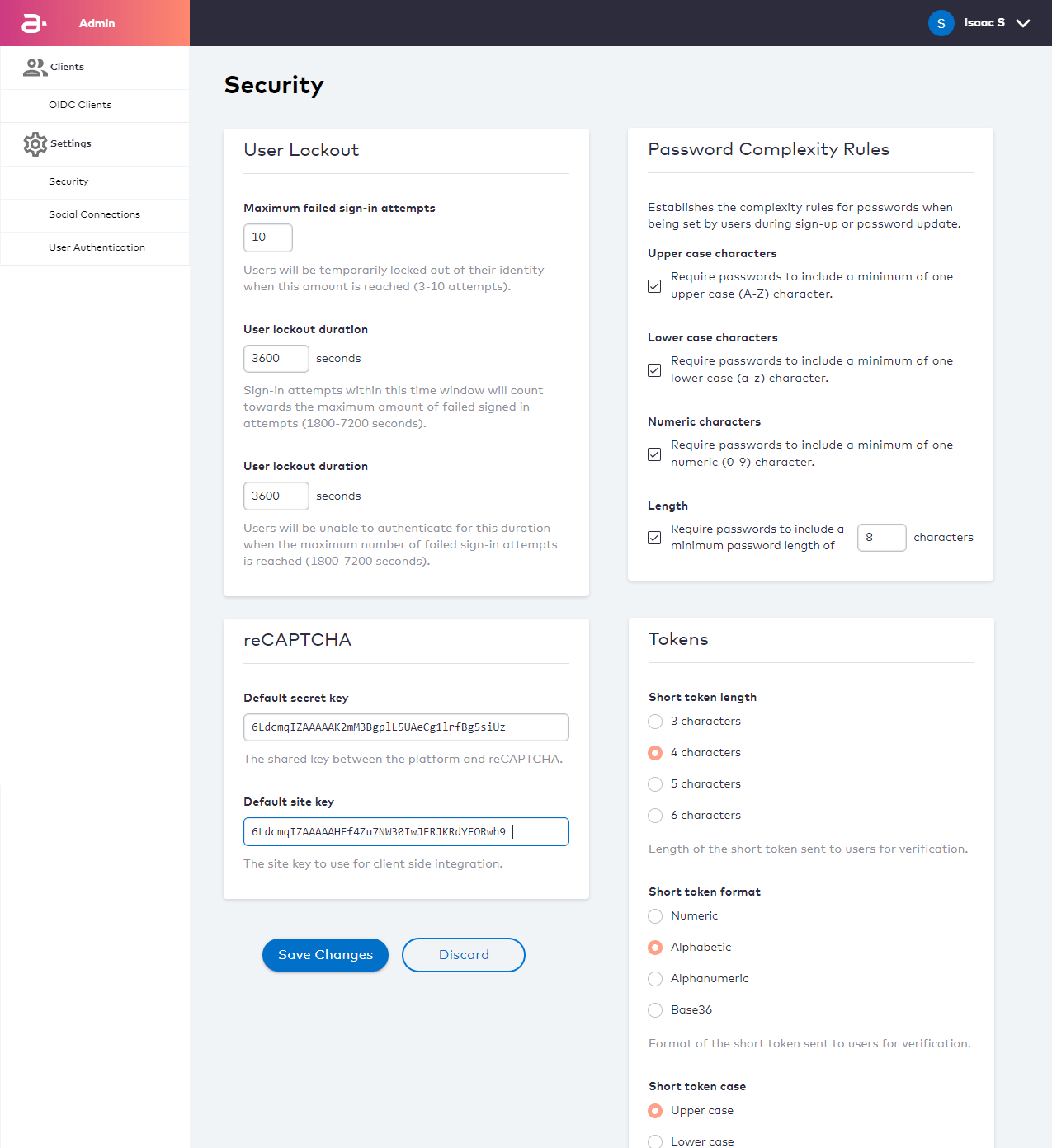 The key configuration points include the following:
* The maximum number of times a user can fail an authentication attempt before they are temporary locked out.
* The time period in which a user's failed authentication attempts are added to a total.
* The duration of a temporary user lockout.
* Password complexity rules that define the minimum criteria for a user password to be acceptable.
* Rules that control [Connect Action Tokens](https://docs.vindicia.com/bundle/b_processGuide/page/connectProcessAPIGuide/c_actionTokens.html) (both short-form custom OTPs and long-form redirect URLs).
**Social Connections**
Social Connections Settings enable and control the supported third-party social integrations for when you want to support sign-up/sign-in options with a supported third-party social identity provider.
The key configuration points include the following:
* The maximum number of times a user can fail an authentication attempt before they are temporary locked out.
* The time period in which a user's failed authentication attempts are added to a total.
* The duration of a temporary user lockout.
* Password complexity rules that define the minimum criteria for a user password to be acceptable.
* Rules that control [Connect Action Tokens](https://docs.vindicia.com/bundle/b_processGuide/page/connectProcessAPIGuide/c_actionTokens.html) (both short-form custom OTPs and long-form redirect URLs).
**Social Connections**
Social Connections Settings enable and control the supported third-party social integrations for when you want to support sign-up/sign-in options with a supported third-party social identity provider.
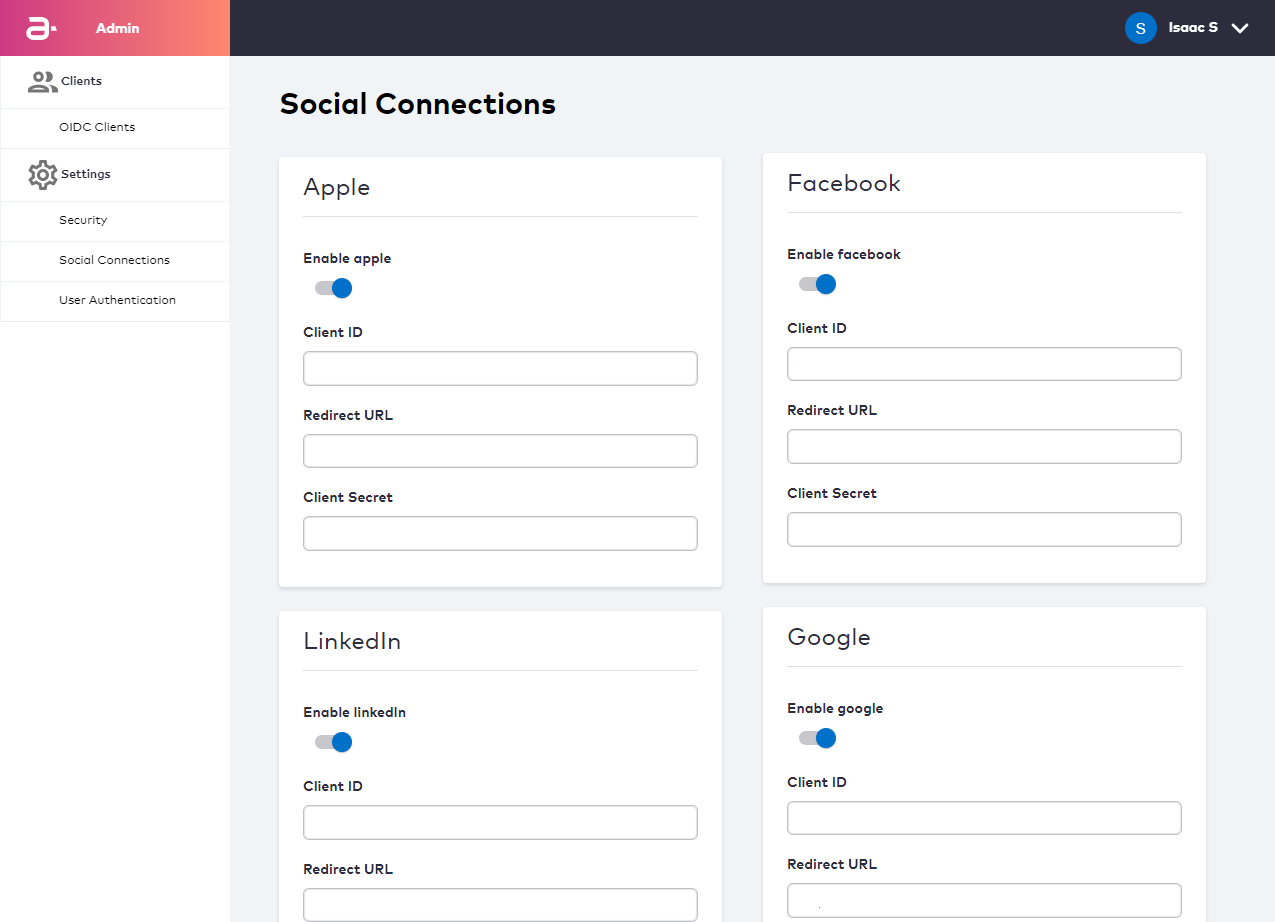 Currently, Connect supports integrations with the following social providers:
* Apple (API and UI)
* Facebook (API and UI)
* LinkedIn (API, UI coming soon)
* Google (API)
These providers can be called by the platform during the [Onboard and Authenticate User with Social Account Process](https://docs.vindicia.com/bundle/b_processGuide/page/connectProcessAPIGuide/processes/identityManagementProcesses/c_onboardAuthenticateUserSocial.html) and [Associate Social Account to User ID Process](https://docs.vindicia.com/bundle/b_processGuide/page/connectProcessAPIGuide/processes/identityManagementProcesses/c_associateSocial.html). Each Process only needs the appropriate `providerId` at the onset of the Process, and the system will act according to the provider settings configured on this screen.
**User Authentication**
User Authentication Settings control rules related to authentication identifiers (authN IDs).
Currently, Connect supports integrations with the following social providers:
* Apple (API and UI)
* Facebook (API and UI)
* LinkedIn (API, UI coming soon)
* Google (API)
These providers can be called by the platform during the [Onboard and Authenticate User with Social Account Process](https://docs.vindicia.com/bundle/b_processGuide/page/connectProcessAPIGuide/processes/identityManagementProcesses/c_onboardAuthenticateUserSocial.html) and [Associate Social Account to User ID Process](https://docs.vindicia.com/bundle/b_processGuide/page/connectProcessAPIGuide/processes/identityManagementProcesses/c_associateSocial.html). Each Process only needs the appropriate `providerId` at the onset of the Process, and the system will act according to the provider settings configured on this screen.
**User Authentication**
User Authentication Settings control rules related to authentication identifiers (authN IDs).
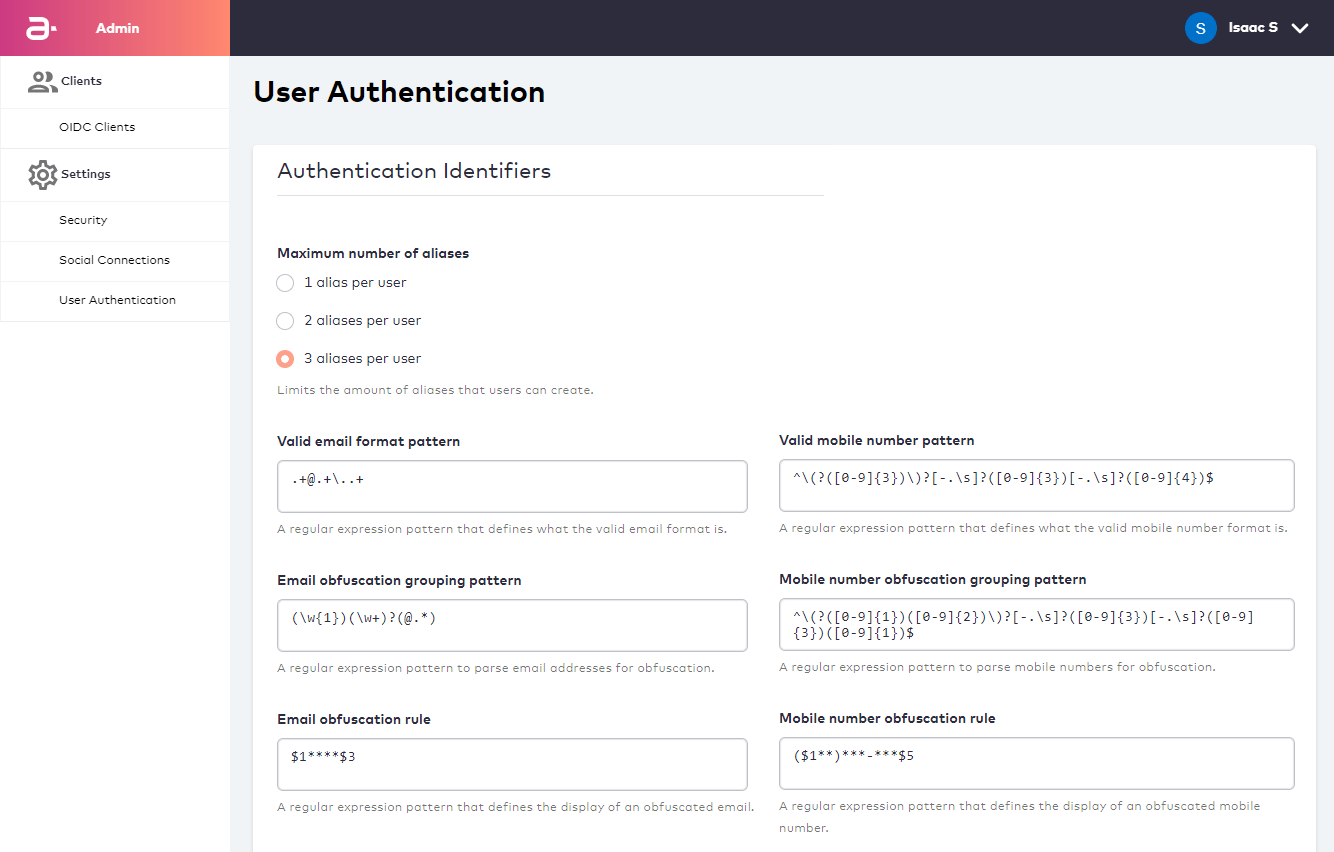 The key configuration points include the following:
* Aliases are unique non-verifiable authN IDs that a user can register to their user ID (or "User Profile" from their perspective) and use for sign-in with a password.
* Valid format patterns control what is an acceptable email or mobile number pattern.
* Obfuscation rules and patterns control how information is returned from User to client applications. These rules and patterns help to control how user contact channels are securely displayed on the client application.
Valid formats and obfuscation rules are defined using Java Script Object Notation (JSON).
**Note:** Comprehensive instructions on using the Security screen will be added to the [Connect Admin Guide](https://docs.vindicia.com/bundle/b_connectAdminGuide) in a forthcoming update.
### Support for Device Authorization Grant Flows
Connect now supports OAuth 2.0 Device Authorization Grant (DAG) flows (in accordance with RFC 8628). This enables users to perform the following tasks:
* Enroll/onboard as a new user associating a device (for example, set-top box, smart TV) for the first time.
* Sign in as an existing user and onboard a new device.
* Sign in as an existing user with an existing device.
APIs and enrollment validation (using a one-time password) are also available for use.
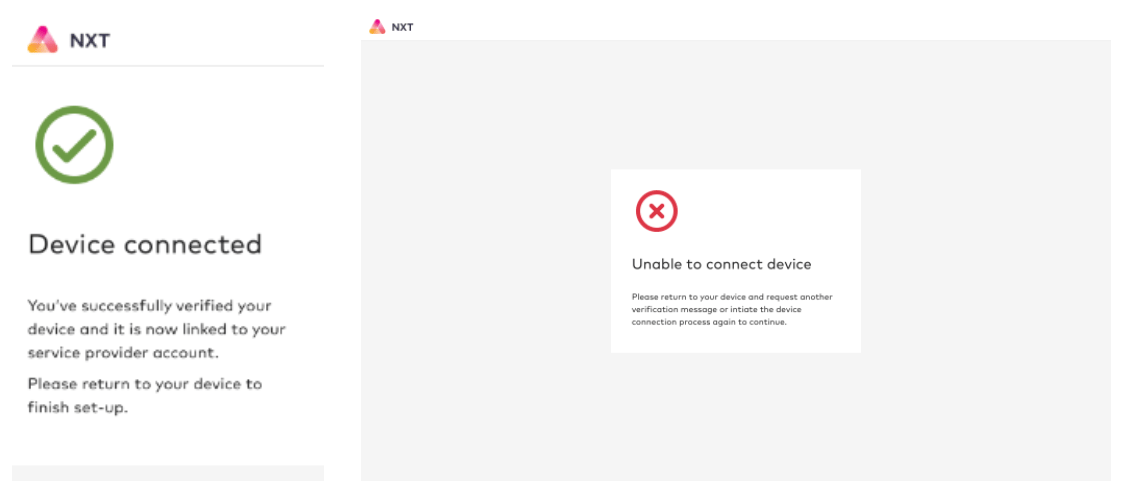
Confirmation (if device is connected) or error UI screens (if device is not connected) are also available for use.
The key configuration points include the following:
* Aliases are unique non-verifiable authN IDs that a user can register to their user ID (or "User Profile" from their perspective) and use for sign-in with a password.
* Valid format patterns control what is an acceptable email or mobile number pattern.
* Obfuscation rules and patterns control how information is returned from User to client applications. These rules and patterns help to control how user contact channels are securely displayed on the client application.
Valid formats and obfuscation rules are defined using Java Script Object Notation (JSON).
**Note:** Comprehensive instructions on using the Security screen will be added to the [Connect Admin Guide](https://docs.vindicia.com/bundle/b_connectAdminGuide) in a forthcoming update.
### Support for Device Authorization Grant Flows
Connect now supports OAuth 2.0 Device Authorization Grant (DAG) flows (in accordance with RFC 8628). This enables users to perform the following tasks:
* Enroll/onboard as a new user associating a device (for example, set-top box, smart TV) for the first time.
* Sign in as an existing user and onboard a new device.
* Sign in as an existing user with an existing device.
APIs and enrollment validation (using a one-time password) are also available for use.
Confirmation (if device is connected) or error UI screens (if device is not connected) are also available for use.
 ### Identity-Driven Purchase and Management of Subscription Services
Connect now supports the purchasing of subscriptions and management of subscription services by an authenticated, fully verified user identity. Capabilities include the following:
* View a list of their current subscriptions, and other subscriptions that can be purchased.
* Purchase an available subscription, with confirmation using one-time password to confirm identity.
* Add 'Pay On Bill' as a payment method (that is, purchasing a subscription service is billed to existing communication service provider account level bill).
* Get subscription status, resend subscription status and cancel subscription.
### Multi-Factor Authentication (MFA) Support Enhancement
Connect fully supports Multi-Factor Authentication (MFA). MFA is a security measure that allows a user to register additional pieces of evidence (or "factors") to protect their identity. When the user attempts to sign in under certain circumstances, Connect prompts them for that factor in order to prove that they own the user ID.
### Identity-Driven Purchase and Management of Subscription Services
Connect now supports the purchasing of subscriptions and management of subscription services by an authenticated, fully verified user identity. Capabilities include the following:
* View a list of their current subscriptions, and other subscriptions that can be purchased.
* Purchase an available subscription, with confirmation using one-time password to confirm identity.
* Add 'Pay On Bill' as a payment method (that is, purchasing a subscription service is billed to existing communication service provider account level bill).
* Get subscription status, resend subscription status and cancel subscription.
### Multi-Factor Authentication (MFA) Support Enhancement
Connect fully supports Multi-Factor Authentication (MFA). MFA is a security measure that allows a user to register additional pieces of evidence (or "factors") to protect their identity. When the user attempts to sign in under certain circumstances, Connect prompts them for that factor in order to prove that they own the user ID.
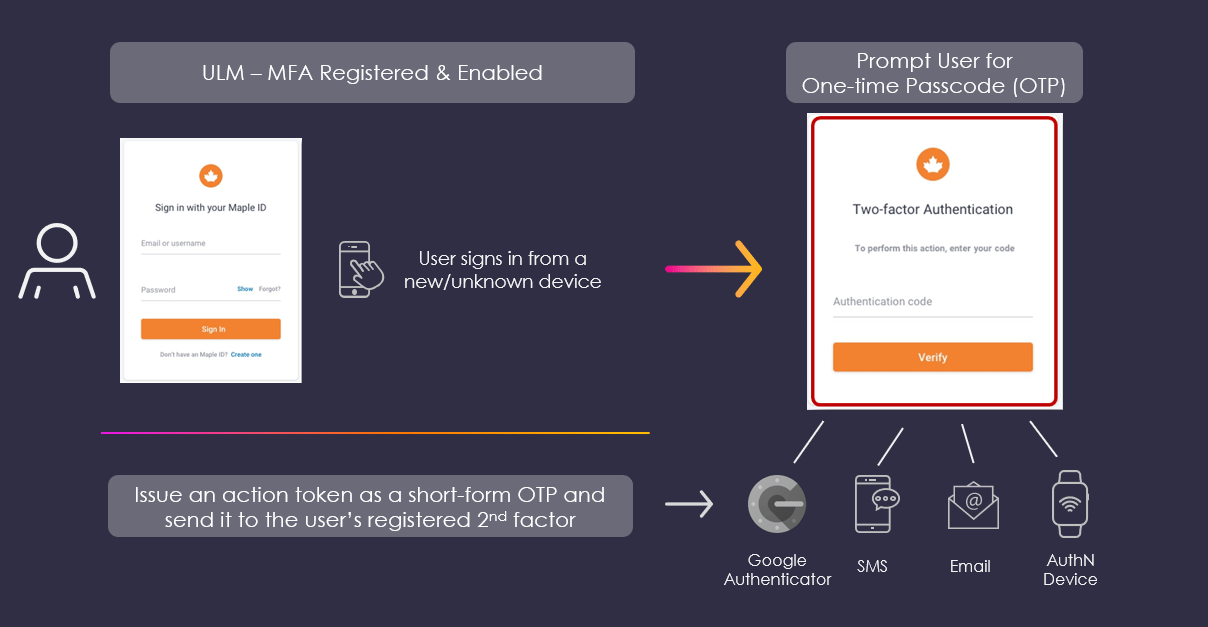 As a common example: a user registers a backup channel (for example, a backup email address, mobile number, or authentication app) with MarketONE. The user then signs in from a new device. The Authenticate User Process sends a short access code to the backup channel, and then prompts the user to supply that code before they can proceed. Once the user successfully passes the MFA check, they are given the option to trust that device. Trusted devices are not prompted for an MFA check upon subsequent sign-in attempts.
## Bug Fixes
The following bugs have been fixed in this release:
| Summary | Description |
| - | - |
| User can get locked out when they onboard with only social and later disassociates the social account | User who onboards with social (for example, Facebook) and disassociates without setting a password can no longer access their account. Issue has been fixed. The user must set a password (using the [Update Password Process](https://docs.vindicia.com/bundle/b_processGuide/page/connectProcessAPIGuide/processes/identityManagementProcesses/c_updatePassword.html)) before they can successfully dissociate their social account. |
| User can't onboard and authenticate on a device using same deviceID | When a user onboards and authenticates on a device (for example, set top box) using the same deviceID, an error is returned. Root cause has been identified and fixed. This functionality works as intended. |
## Known Issues
This release has the following known issues:
| Summary | Description |
| - | - |
| Admin user can't see all values in access token expiration field | Admin users in the Admin Portal using the New OIDC Client screen are unable to see all values in "Access Token expiration" field. This is because of the text-box is too small. Fix to be applied in the 2020.10 release. |
| Error handling messages | When a user creates an ID using and invalid password (not following password length rule as per application settings), a generic error message "An unexpected error has occurred" is being displayed on UI. The error message needs to be specific to the situation so that the user knows what to correct. Fix to be applied the 2020.10 release. |
This documentation is built and hosted on [Mintlify](https://mintlify.com), a developer documentation platform.
As a common example: a user registers a backup channel (for example, a backup email address, mobile number, or authentication app) with MarketONE. The user then signs in from a new device. The Authenticate User Process sends a short access code to the backup channel, and then prompts the user to supply that code before they can proceed. Once the user successfully passes the MFA check, they are given the option to trust that device. Trusted devices are not prompted for an MFA check upon subsequent sign-in attempts.
## Bug Fixes
The following bugs have been fixed in this release:
| Summary | Description |
| - | - |
| User can get locked out when they onboard with only social and later disassociates the social account | User who onboards with social (for example, Facebook) and disassociates without setting a password can no longer access their account. Issue has been fixed. The user must set a password (using the [Update Password Process](https://docs.vindicia.com/bundle/b_processGuide/page/connectProcessAPIGuide/processes/identityManagementProcesses/c_updatePassword.html)) before they can successfully dissociate their social account. |
| User can't onboard and authenticate on a device using same deviceID | When a user onboards and authenticates on a device (for example, set top box) using the same deviceID, an error is returned. Root cause has been identified and fixed. This functionality works as intended. |
## Known Issues
This release has the following known issues:
| Summary | Description |
| - | - |
| Admin user can't see all values in access token expiration field | Admin users in the Admin Portal using the New OIDC Client screen are unable to see all values in "Access Token expiration" field. This is because of the text-box is too small. Fix to be applied in the 2020.10 release. |
| Error handling messages | When a user creates an ID using and invalid password (not following password length rule as per application settings), a generic error message "An unexpected error has occurred" is being displayed on UI. The error message needs to be specific to the situation so that the user knows what to correct. Fix to be applied the 2020.10 release. |
This documentation is built and hosted on [Mintlify](https://mintlify.com), a developer documentation platform.