> ## Documentation Index
> Fetch the complete documentation index at: https://docs.ulm.m1amdocs.com/llms.txt
> Use this file to discover all available pages before exploring further.
# Activate User (and User Attribute) Process
This Process activates an email address or mobile number that a user has registered in Digital Identity Management either during an onboarding Process, or after they have authenticated into the service. In the onboarding use case, this Process also fully activates the User entity itself.
## Multiple Process Orchestration
Many user journeys are facilitated by a single Process. Conversely, there are some cases where Digital Identity Management orchestrates and links two or more Processes to complete a given journey.
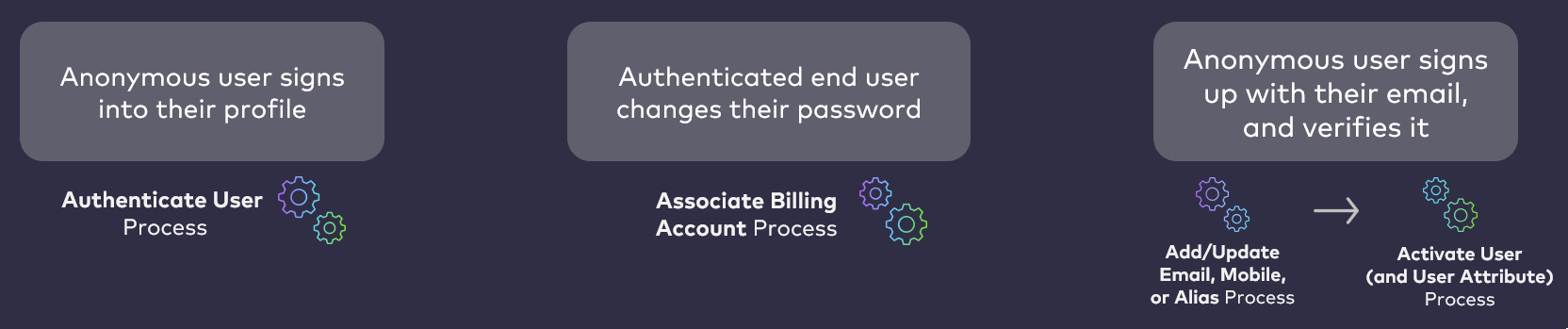 The **Activate User (and User Attribute)** Process completes a user journey initiated by a preceding Process, typically in cases where the user opts to (or needs to) navigate away from the client UI, and then resume their interactions with Digital Identity Management from a separate point of entry (e.g., through a redirect URL in a verification email) or with a separate piece of information (e.g., a short One-time Passcode sent in a verification SMS).
## Digital Identity Management User Entity and AuthN ID Status
Digital Identity Management is built on top of a user-centric and entitlement-specific data model of Digital Identity Management data entities. Each Digital Identity Management entity is composed of **properties** and **attributes**, or data field names and their respective values. Each entity includes a set of default properties shared across each entity type, and an `attributes` property that contains additional entity-specific metadata.
End users are represented by the User entity that is defined by, among other properties, a `status`. The user's registered emails and mobile numbers are stored one level down inside the `attributes` property, and each individual email or mobile has its own status.
The **Activate User (and User Attribute)** Process completes a user journey initiated by a preceding Process, typically in cases where the user opts to (or needs to) navigate away from the client UI, and then resume their interactions with Digital Identity Management from a separate point of entry (e.g., through a redirect URL in a verification email) or with a separate piece of information (e.g., a short One-time Passcode sent in a verification SMS).
## Digital Identity Management User Entity and AuthN ID Status
Digital Identity Management is built on top of a user-centric and entitlement-specific data model of Digital Identity Management data entities. Each Digital Identity Management entity is composed of **properties** and **attributes**, or data field names and their respective values. Each entity includes a set of default properties shared across each entity type, and an `attributes` property that contains additional entity-specific metadata.
End users are represented by the User entity that is defined by, among other properties, a `status`. The user's registered emails and mobile numbers are stored one level down inside the `attributes` property, and each individual email or mobile has its own status.
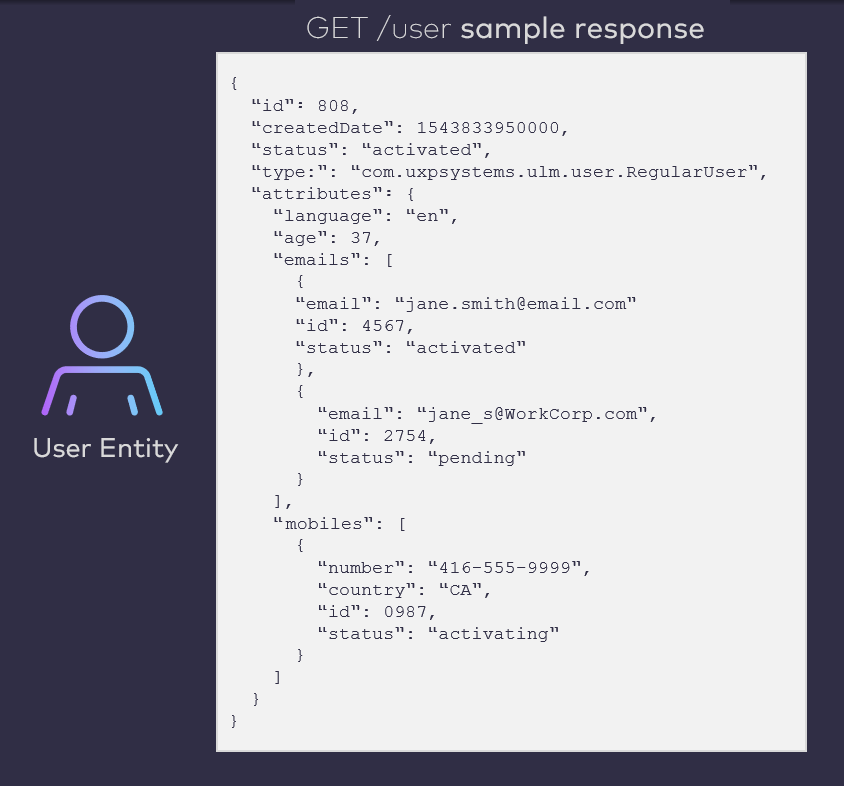 In order for a user fully activate their User ID, they must register and verify at least one email address or mobile number as their authentication identifier (authN ID). So if the user is onboarding, Activate User updates both the User entity status and the authN ID in one shot. Conversely, if the User entity is already activated, and the user simply adds a new email or mobile, the Activate User only updates that email/mobile.
## Process Invocation
Unlike most Digital Identity Management Processes, Activate User **is not** invoked with the [Process Start](c_processStart) API. Instead, your client leverages the [Session Token](c_sessionToken#) API. This API redeems an [action token](c_actionTokens) that Digital Identity Management issued at the end of a previous Process. Successfully redeeming the token causes Digital Identity Management to start (and complete) the Activate User Process. Digital Identity Management knows what entity (and what fields) to update based on context stored in the token.
There are two methods to call the Session Token API in order to start a Process. Each method is appropriate to the type of notification the user receives, either a clickable verification link, or a short code that the user needs to give to the UI:
```
GET https://{your.url}/session/token?token={**token value**}
```
1. The user completes a Process.
2. Digital Identity Management issues an action token, and sends a verification link in an email or SMS. The link is composed of a redirect URL back to your client application, and the full, actual token string is appended to the end of that URL.
3. Once the user clicks/taps the link, they are redirected back to the client.
4. The client automatically takes the token value directly from the URL, and uses it to call `GET /session/token?token={**token**}` API. If the token is valid, then this triggers the Activate User Process.
**Note:** If your business plans on sending clickable link notifications, you'll need to do things for this flow: create the actual landing page that will invoke this API method when opened, and set the redirect URL to that landing page in the MarketONE Admin console's Security settings menu. This allows us to automatically send the appropriate link to the user once they've completed the first half of their journey.
```
GET https://{your.url}/session/token?customToken={**OTP**}&pkat={**PKAT**}
```
1. The user completes a Process.
2. Digital Identity Management sends a short, custom One-time Passcode (OTP) in an email or SMS. Digital Identity Management also returns a PKAT to the client.
3. The client prompts the user to enter the OTP that was sent to them.
4. The user retrieves the code, and enters it into the client.
5. Once the user enters their code, the client then takes the OTP and the PKAT to call `GET /session/token?customToken={**otp**}&pkat{**pkat**}` API. If both the OTP and PKAT are valid, then this triggers the Activate User Process.
**Note:** If the user enters an incorrect OTP three times, the GET /session/token API will lock out and invalidate the OTP. The user must then request a token resend ([PUT /session/token](c_putSessionToken) or[Send Verification](c_sendVerification) Process) to "reset" that ability for the user to provide an OTP.
| Token Value and OTPs |
| - |
| For redirect URL-based verification messages, Digital Identity Management appends the actual token value (the token that is stored in the cloud) to the URL. For OTP-based verification, Digital Identity Management sends the user a short, custom code that is **not** the actual token value, but one that represents the token stored in the cloud. |
## Common Use Cases
These are the common use cases that involve the Activate User Process:
* A new, anonymous user onboards with their email or mobile . They then verify their email/mobile. This activates both the User entity and the email/mobile that is stored on the User entity as an attribute.
* A new, anonymous user onboards with their social account. However, they change the email/mobile returned by the social provider, so they must verify the new email/mobile. Once they verify it, this fully activates both the User entity email/mobile that is stored on the User entity as an attribute.
* An existing, authenticated user adds a new email or mobile to their User ID. The email/mobile is stored on the User entity as an attribute with an `activating` status. The user then verifies the new email/mobile, and this changes the attribute status to `activated` .
* An existing, authenticated user updates a current email or mobile with a new one. The replacement email/mobile is stored on the User entity as an attribute with a `pending` status. They the user then verifies the replacement new email/mobile.
* The old email/mobile attribute is removed from the User entity.
* The new, replacement email/mobile attribute is updated from `pending` to `activated` .
## Process Flow - Onboard User
This flow describes the Activate Process at a high level, after it follows the [Onboard User with Email and Mobile Process](c_onboardUserEmailMobile).
**Preconditions**
* The User ID (i.e., Digital Identity Management User entity) exists in Digital Identity Management, but the user has not yet verified their email or mobile
* User may be currently anonymous (in Onboarding flows) or authenticated (in Add New Email/Mobile flows).
**Basic Flow**
1. Once the user submits their info to Digital Identity Management, they then receive either an email or SMS with an action token (clickable link, OTP, or both).
2. The user invokes this Process through one of two methods:
1. They manually enter the OTP into client UI (if the client prompts them for a code).
2. They click (or tap) the verification link in their email/SMS.
3. Digital Identity Management redeems the token, and verifies that the user is coming in from the standard onboarding flow.
4. Digital Identity Management verifies the email/mobile and changes the authN ID attribute status from `activating` to `activated`.
5. Digital Identity Management changes the Digital Identity Management User entity status from `activating` to `activated`.
6. Digital Identity Management automatically authenticates the user.
**Post-conditions**
* The User is now fully activated.
* The user's email address or mobile number is now a valid authentication identifier (or authN ID).
* The user can now [authenticate with this authN ID and password](c_authenticateUser).
**Possible or Common Errors**
* User not found (i.e., the user ID referenced in the token no longer exists).
* The action token (link or OTP) expired.
## Process Flow - Add or Update AuthN ID
This flow describes the Activate Process at a high level, after it follows the [Add or Update Email, Mobile, or Alias](c_addUpdateAuthnID) Process.
**Note:** Aliases are not verifiable. Therefore, they are automatically "activated" as soon as they are created. This Process only applies to email addresses and mobile numbers that users register as authN IDs.
**Basic Flow**
1. Once the user submits their desired authN ID, they then receive an email or SMS with an action token (clickable link, OTP, or both)
2. The user then invokes the Process through one of two methods:
1. They manually enter the OTP into client UI (if the client prompts them for a code).
2. They click (or tap) the verification link in their email/SMS.
3. Digital Identity Management redeems the token, and verifies that the user is coming in from the [Add or Update Email, Mobile, or Alias](c_addUpdateAuthnID) flow.
4. Digital Identity Management fully activates a new email/mobile, **or** updates an existing email/mobile, based on the following criteria:
1. The email/mobile currently has a `pending` status. This means an existing email/mobile is being updated (as opposed to a *new* email being added to the User entity). Digital Identity Management changes the email/mobile's status from `pending` to `activated`. If the replaced email/mobile was the user's primary notification channel, then this setting carries over to the updated email/mobile.
2. The email/mobile currently has an `activating` status. This means it is a *new* email/mobile being added to the Digital Identity Management User entity. Digital Identity Management changes the new email/mobile's status from `activating` status to `activated`.
5. Digital Identity Management changes the Digital Identity Management User entity status from `activating` to `activated`. The following conditions apply:
* If a new email/mobile is added to the User ID, then a notification is sent to that new channel.
* If the primary email/mobile was updated, then a notification is also sent to the email/mobile that is being replaced. The notification indicates that this email/mobile that has been removed from Digital Identity Management.
* If the current/primary email or mobile is replaced, then Digital Identity Management invalidates all other sessions (e.g., for remember me/auto-login) except for the current one.
6. Digital Identity Management automatically authenticates the user (if they are not already authenticated).
**Post-conditions**
* The new or updated email/mobile is activated as a authentication identifier (authN ID).
* The user can now [authenticate with this authN ID and password](c_authenticateUser).
* If a previous email or mobile was replaced, then that email/mobile is removed from the Digital Identity Management User entity.
**Possible or Common Errors**
* User not found (i.e., the user ID referenced in the token no longer exists).
* The action token (link or OTP) expired.
| Edge Case |
| - |
| If a user successfully [onboards and authenticates into Digital Identity Management with their social account](c_onboardAuthenticateUserSocial), this means they have created a User entity without a password. Should the user then select to [add an additional authN ID](c_addUpdateAuthnID), and then activate that authN ID, the Activate User Process will first request for the user to supply a password before it verifies the new authN ID. The user **must** set a password on their Digital Identity Management User ID if they want to have more than one authN ID registered to their User ID. |
## Process Flow - Onboard with Social Account
This flow describes the Activate Process at a high level, after it follows the [Onboard (and Authenticate) with Social Account](c_onboardAuthenticateUserSocial) Process.
**Basic Flow**
1. (**Conditional**) Digital Identity Management sends an action token to the user's email/mobile in one of the following scenarios:
1. The user changes the email/mobile value returned by the social provider.
2. The social provider does not return an email/mobile. Therefore, the user **must** provide and verify a contact channel.
**Note:** If the social provider returns an email/mobile, and the user simply confirms that email/mobile, then Digital Identity Management trusts that the provider has validated the contact channel. In that scenario, the Activate User Process is not invoked. Instead, the Onboard & Authenticate User with Social Process completes user activation and authentication.
2. The user then invokes the Process through one of two methods:
1. They manually enter the OTP into client UI (if the client prompts them for a code).
2. They click (or tap) the verification link in their email/SMS.
3. Digital Identity Management redeems the token, and verifies that the user is coming in after the [Social Onboarding](c_onboardAuthenticateUserSocial) flow.
4. Digital Identity Management registers both the social media ID and email/mobile as attributes on the Digital Identity Management User entity.
5. Digital Identity Management automatically authenticates the user (if they are not already authenticated).
**Postconditions**
* The Digital Identity Management User ID is fully activated and associated to the social account.
* The user can now authenticate with that social account.
* The user-supplied email/mobile is now a valid authentication identifier (or authN ID).
* The user can optionally add a password to their User ID with the [Update Password](c_updatePassword) Process.
**Possible or Common Errors**
* User not found (i.e., the user ID referenced in the token no longer exists).
* The action token (link or OTP) expired.
## Process Flow - Custom Assistance
A customer calls into the operator's business call center, and requests help with onboarding.
**Basic Flow**
1. A customer service representative (CSR) assists a customer over the phone. They enter customer's first name, last name, and email/mobile in the respective CRM. The following conditions apply:
* The CSR can provide any additional user details to be stored as attributes on the User entity.
* The CSR can not provide a password for the new User entity.
* The CSR can use the Digital Identity Management Care UI to register the new Digital Identity Management User.
* Alternatively, the operator's proprietary CRM can also invoke one of Digital Identity Management's REST APIs for User provisioning.
2. Digital Identity Management creates the User entity, and stores the authN ID (the user's email or mobile) as an entity attribute. Both the User entity and the authN ID are created with an `activating` status.
3. Digital Identity Management sends an action token to email/mobile provided by the CSR.
4. The user clicks/taps the verification link, and this redirects the user to the client. The following conditions apply:
* The link includes a redirect URL back to the client application, and an action token appended to the end of the URL
* The redirect URL is set in the MarketONE Admin console. Your team will want to build the appropriate landing page, and then set the URL to that landing page in MarketONE Admin.
5. The client takes the token from the URL, and uses it to invokes the [GET /session/token?=\{token}](c_sessionToken#) API.
6. Digital Identity Management looks up and locates the User ID based on the token data.
7. Digital Identity Management prompts the user to set a password.
8. Digital Identity Management verifies the password, changes both the Digital Identity Management User entity status and authN ID status from **`activating`** to **`activated`**.
9. Digital Identity Management automatically authenticates the user.
## App Settings
Certain aspects of the Process' behavior are controlled by configurable [system settings](https://docs.vindicia.com/bundle/b_connectAdminGuide/page/topics/appSettings_c.html) are accessed in the [Digital Identity Management Admin](https://docs.vindicia.com/bundle/b_connectAdminGuide/page/topics/adminIntroduction_c.html) console.
| Application Settings | Default Setting | | |
| - | - | - | - |
| **Password Complexity Rules** | Defines the criteria for a valid password when the user is onboarding, or resetting/updating their password. Configuration points include:- **Upper case characters** - The password requires at least one uppercase (A-Z) character. - **Lower case characters**The password requires at least one lowercase (a-z) character. - **Special characters**The password requires at least one [special character](reusePasswordSettingSpecialCharsList). - The password requires at least one numeric (0-9) character. - The minimum password length. | - A-Z: Enabled - a-z: Enabled - (!"#\$%&'()\*+,-./:;=>?@\[\\]^\_\`\{\\ | \}\~): Enabled - 0-9: Enabled - Minimum length: 8 |
## User Journey Diagram
The Activate User Process comprises the second half of a variety of journeys started with a separate Process. Refer to the User Journey diagrams for these Processes to see where this Process fits into those flows:
* [Onboard User with Email and Mobile](c_onboardUserEmailMobile) Process
* [Onboard and Authenticate User with Social Account](c_onboardAuthenticateUserSocial) Process
* [Add/Update Email, Mobile, and Alias](c_addUpdateAuthnID) Process
## Use Cases
See the following use case topics for a guided API walk-through of this Process:
* [Activate user with one-time passcode (OTP)](c_useCaseActivateOTP)
* [Activate user with verification link (redirect URL)](c_useCaseActivateURL)
* [Activate user, password required](c_useCaseActivatePassword)
* [Activation errors](c_activationErrors)
* **[Activate user with an OTP](../topics/c_useCaseActivateOTP)**
* **[Activate user with a verification link](../topics/c_useCaseActivateURL)**
* **[Activate user, password is required](../topics/c_useCaseActivatePassword)**
* **[Activation Errors](../topics/c_activationErrors)**
**Parent topic:**[Identity Management Processes](../images/c_identityProcesses)
This documentation is built and hosted on [Mintlify](https://mintlify.com), a developer documentation platform.
In order for a user fully activate their User ID, they must register and verify at least one email address or mobile number as their authentication identifier (authN ID). So if the user is onboarding, Activate User updates both the User entity status and the authN ID in one shot. Conversely, if the User entity is already activated, and the user simply adds a new email or mobile, the Activate User only updates that email/mobile.
## Process Invocation
Unlike most Digital Identity Management Processes, Activate User **is not** invoked with the [Process Start](c_processStart) API. Instead, your client leverages the [Session Token](c_sessionToken#) API. This API redeems an [action token](c_actionTokens) that Digital Identity Management issued at the end of a previous Process. Successfully redeeming the token causes Digital Identity Management to start (and complete) the Activate User Process. Digital Identity Management knows what entity (and what fields) to update based on context stored in the token.
There are two methods to call the Session Token API in order to start a Process. Each method is appropriate to the type of notification the user receives, either a clickable verification link, or a short code that the user needs to give to the UI:
```
GET https://{your.url}/session/token?token={**token value**}
```
1. The user completes a Process.
2. Digital Identity Management issues an action token, and sends a verification link in an email or SMS. The link is composed of a redirect URL back to your client application, and the full, actual token string is appended to the end of that URL.
3. Once the user clicks/taps the link, they are redirected back to the client.
4. The client automatically takes the token value directly from the URL, and uses it to call `GET /session/token?token={**token**}` API. If the token is valid, then this triggers the Activate User Process.
**Note:** If your business plans on sending clickable link notifications, you'll need to do things for this flow: create the actual landing page that will invoke this API method when opened, and set the redirect URL to that landing page in the MarketONE Admin console's Security settings menu. This allows us to automatically send the appropriate link to the user once they've completed the first half of their journey.
```
GET https://{your.url}/session/token?customToken={**OTP**}&pkat={**PKAT**}
```
1. The user completes a Process.
2. Digital Identity Management sends a short, custom One-time Passcode (OTP) in an email or SMS. Digital Identity Management also returns a PKAT to the client.
3. The client prompts the user to enter the OTP that was sent to them.
4. The user retrieves the code, and enters it into the client.
5. Once the user enters their code, the client then takes the OTP and the PKAT to call `GET /session/token?customToken={**otp**}&pkat{**pkat**}` API. If both the OTP and PKAT are valid, then this triggers the Activate User Process.
**Note:** If the user enters an incorrect OTP three times, the GET /session/token API will lock out and invalidate the OTP. The user must then request a token resend ([PUT /session/token](c_putSessionToken) or[Send Verification](c_sendVerification) Process) to "reset" that ability for the user to provide an OTP.
| Token Value and OTPs |
| - |
| For redirect URL-based verification messages, Digital Identity Management appends the actual token value (the token that is stored in the cloud) to the URL. For OTP-based verification, Digital Identity Management sends the user a short, custom code that is **not** the actual token value, but one that represents the token stored in the cloud. |
## Common Use Cases
These are the common use cases that involve the Activate User Process:
* A new, anonymous user onboards with their email or mobile . They then verify their email/mobile. This activates both the User entity and the email/mobile that is stored on the User entity as an attribute.
* A new, anonymous user onboards with their social account. However, they change the email/mobile returned by the social provider, so they must verify the new email/mobile. Once they verify it, this fully activates both the User entity email/mobile that is stored on the User entity as an attribute.
* An existing, authenticated user adds a new email or mobile to their User ID. The email/mobile is stored on the User entity as an attribute with an `activating` status. The user then verifies the new email/mobile, and this changes the attribute status to `activated` .
* An existing, authenticated user updates a current email or mobile with a new one. The replacement email/mobile is stored on the User entity as an attribute with a `pending` status. They the user then verifies the replacement new email/mobile.
* The old email/mobile attribute is removed from the User entity.
* The new, replacement email/mobile attribute is updated from `pending` to `activated` .
## Process Flow - Onboard User
This flow describes the Activate Process at a high level, after it follows the [Onboard User with Email and Mobile Process](c_onboardUserEmailMobile).
**Preconditions**
* The User ID (i.e., Digital Identity Management User entity) exists in Digital Identity Management, but the user has not yet verified their email or mobile
* User may be currently anonymous (in Onboarding flows) or authenticated (in Add New Email/Mobile flows).
**Basic Flow**
1. Once the user submits their info to Digital Identity Management, they then receive either an email or SMS with an action token (clickable link, OTP, or both).
2. The user invokes this Process through one of two methods:
1. They manually enter the OTP into client UI (if the client prompts them for a code).
2. They click (or tap) the verification link in their email/SMS.
3. Digital Identity Management redeems the token, and verifies that the user is coming in from the standard onboarding flow.
4. Digital Identity Management verifies the email/mobile and changes the authN ID attribute status from `activating` to `activated`.
5. Digital Identity Management changes the Digital Identity Management User entity status from `activating` to `activated`.
6. Digital Identity Management automatically authenticates the user.
**Post-conditions**
* The User is now fully activated.
* The user's email address or mobile number is now a valid authentication identifier (or authN ID).
* The user can now [authenticate with this authN ID and password](c_authenticateUser).
**Possible or Common Errors**
* User not found (i.e., the user ID referenced in the token no longer exists).
* The action token (link or OTP) expired.
## Process Flow - Add or Update AuthN ID
This flow describes the Activate Process at a high level, after it follows the [Add or Update Email, Mobile, or Alias](c_addUpdateAuthnID) Process.
**Note:** Aliases are not verifiable. Therefore, they are automatically "activated" as soon as they are created. This Process only applies to email addresses and mobile numbers that users register as authN IDs.
**Basic Flow**
1. Once the user submits their desired authN ID, they then receive an email or SMS with an action token (clickable link, OTP, or both)
2. The user then invokes the Process through one of two methods:
1. They manually enter the OTP into client UI (if the client prompts them for a code).
2. They click (or tap) the verification link in their email/SMS.
3. Digital Identity Management redeems the token, and verifies that the user is coming in from the [Add or Update Email, Mobile, or Alias](c_addUpdateAuthnID) flow.
4. Digital Identity Management fully activates a new email/mobile, **or** updates an existing email/mobile, based on the following criteria:
1. The email/mobile currently has a `pending` status. This means an existing email/mobile is being updated (as opposed to a *new* email being added to the User entity). Digital Identity Management changes the email/mobile's status from `pending` to `activated`. If the replaced email/mobile was the user's primary notification channel, then this setting carries over to the updated email/mobile.
2. The email/mobile currently has an `activating` status. This means it is a *new* email/mobile being added to the Digital Identity Management User entity. Digital Identity Management changes the new email/mobile's status from `activating` status to `activated`.
5. Digital Identity Management changes the Digital Identity Management User entity status from `activating` to `activated`. The following conditions apply:
* If a new email/mobile is added to the User ID, then a notification is sent to that new channel.
* If the primary email/mobile was updated, then a notification is also sent to the email/mobile that is being replaced. The notification indicates that this email/mobile that has been removed from Digital Identity Management.
* If the current/primary email or mobile is replaced, then Digital Identity Management invalidates all other sessions (e.g., for remember me/auto-login) except for the current one.
6. Digital Identity Management automatically authenticates the user (if they are not already authenticated).
**Post-conditions**
* The new or updated email/mobile is activated as a authentication identifier (authN ID).
* The user can now [authenticate with this authN ID and password](c_authenticateUser).
* If a previous email or mobile was replaced, then that email/mobile is removed from the Digital Identity Management User entity.
**Possible or Common Errors**
* User not found (i.e., the user ID referenced in the token no longer exists).
* The action token (link or OTP) expired.
| Edge Case |
| - |
| If a user successfully [onboards and authenticates into Digital Identity Management with their social account](c_onboardAuthenticateUserSocial), this means they have created a User entity without a password. Should the user then select to [add an additional authN ID](c_addUpdateAuthnID), and then activate that authN ID, the Activate User Process will first request for the user to supply a password before it verifies the new authN ID. The user **must** set a password on their Digital Identity Management User ID if they want to have more than one authN ID registered to their User ID. |
## Process Flow - Onboard with Social Account
This flow describes the Activate Process at a high level, after it follows the [Onboard (and Authenticate) with Social Account](c_onboardAuthenticateUserSocial) Process.
**Basic Flow**
1. (**Conditional**) Digital Identity Management sends an action token to the user's email/mobile in one of the following scenarios:
1. The user changes the email/mobile value returned by the social provider.
2. The social provider does not return an email/mobile. Therefore, the user **must** provide and verify a contact channel.
**Note:** If the social provider returns an email/mobile, and the user simply confirms that email/mobile, then Digital Identity Management trusts that the provider has validated the contact channel. In that scenario, the Activate User Process is not invoked. Instead, the Onboard & Authenticate User with Social Process completes user activation and authentication.
2. The user then invokes the Process through one of two methods:
1. They manually enter the OTP into client UI (if the client prompts them for a code).
2. They click (or tap) the verification link in their email/SMS.
3. Digital Identity Management redeems the token, and verifies that the user is coming in after the [Social Onboarding](c_onboardAuthenticateUserSocial) flow.
4. Digital Identity Management registers both the social media ID and email/mobile as attributes on the Digital Identity Management User entity.
5. Digital Identity Management automatically authenticates the user (if they are not already authenticated).
**Postconditions**
* The Digital Identity Management User ID is fully activated and associated to the social account.
* The user can now authenticate with that social account.
* The user-supplied email/mobile is now a valid authentication identifier (or authN ID).
* The user can optionally add a password to their User ID with the [Update Password](c_updatePassword) Process.
**Possible or Common Errors**
* User not found (i.e., the user ID referenced in the token no longer exists).
* The action token (link or OTP) expired.
## Process Flow - Custom Assistance
A customer calls into the operator's business call center, and requests help with onboarding.
**Basic Flow**
1. A customer service representative (CSR) assists a customer over the phone. They enter customer's first name, last name, and email/mobile in the respective CRM. The following conditions apply:
* The CSR can provide any additional user details to be stored as attributes on the User entity.
* The CSR can not provide a password for the new User entity.
* The CSR can use the Digital Identity Management Care UI to register the new Digital Identity Management User.
* Alternatively, the operator's proprietary CRM can also invoke one of Digital Identity Management's REST APIs for User provisioning.
2. Digital Identity Management creates the User entity, and stores the authN ID (the user's email or mobile) as an entity attribute. Both the User entity and the authN ID are created with an `activating` status.
3. Digital Identity Management sends an action token to email/mobile provided by the CSR.
4. The user clicks/taps the verification link, and this redirects the user to the client. The following conditions apply:
* The link includes a redirect URL back to the client application, and an action token appended to the end of the URL
* The redirect URL is set in the MarketONE Admin console. Your team will want to build the appropriate landing page, and then set the URL to that landing page in MarketONE Admin.
5. The client takes the token from the URL, and uses it to invokes the [GET /session/token?=\{token}](c_sessionToken#) API.
6. Digital Identity Management looks up and locates the User ID based on the token data.
7. Digital Identity Management prompts the user to set a password.
8. Digital Identity Management verifies the password, changes both the Digital Identity Management User entity status and authN ID status from **`activating`** to **`activated`**.
9. Digital Identity Management automatically authenticates the user.
## App Settings
Certain aspects of the Process' behavior are controlled by configurable [system settings](https://docs.vindicia.com/bundle/b_connectAdminGuide/page/topics/appSettings_c.html) are accessed in the [Digital Identity Management Admin](https://docs.vindicia.com/bundle/b_connectAdminGuide/page/topics/adminIntroduction_c.html) console.
| Application Settings | Default Setting | | |
| - | - | - | - |
| **Password Complexity Rules** | Defines the criteria for a valid password when the user is onboarding, or resetting/updating their password. Configuration points include:- **Upper case characters** - The password requires at least one uppercase (A-Z) character. - **Lower case characters**The password requires at least one lowercase (a-z) character. - **Special characters**The password requires at least one [special character](reusePasswordSettingSpecialCharsList). - The password requires at least one numeric (0-9) character. - The minimum password length. | - A-Z: Enabled - a-z: Enabled - (!"#\$%&'()\*+,-./:;=>?@\[\\]^\_\`\{\\ | \}\~): Enabled - 0-9: Enabled - Minimum length: 8 |
## User Journey Diagram
The Activate User Process comprises the second half of a variety of journeys started with a separate Process. Refer to the User Journey diagrams for these Processes to see where this Process fits into those flows:
* [Onboard User with Email and Mobile](c_onboardUserEmailMobile) Process
* [Onboard and Authenticate User with Social Account](c_onboardAuthenticateUserSocial) Process
* [Add/Update Email, Mobile, and Alias](c_addUpdateAuthnID) Process
## Use Cases
See the following use case topics for a guided API walk-through of this Process:
* [Activate user with one-time passcode (OTP)](c_useCaseActivateOTP)
* [Activate user with verification link (redirect URL)](c_useCaseActivateURL)
* [Activate user, password required](c_useCaseActivatePassword)
* [Activation errors](c_activationErrors)
* **[Activate user with an OTP](../topics/c_useCaseActivateOTP)**
* **[Activate user with a verification link](../topics/c_useCaseActivateURL)**
* **[Activate user, password is required](../topics/c_useCaseActivatePassword)**
* **[Activation Errors](../topics/c_activationErrors)**
**Parent topic:**[Identity Management Processes](../images/c_identityProcesses)
This documentation is built and hosted on [Mintlify](https://mintlify.com), a developer documentation platform.