

- Change the logo and customize your theme using template files
- Update Terms of Service and Privacy Policy URL supports
- Configure your localization (language)
-
Navigate to Admin console > Branding > Identity app.
-
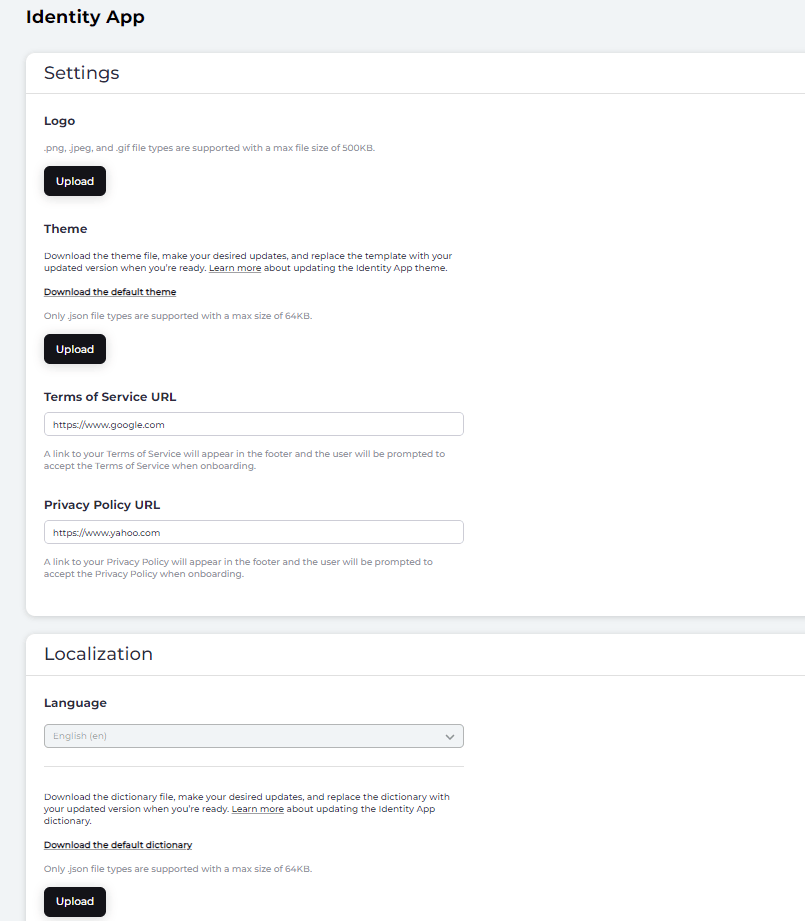
Change the logo, by selecting Upload from the Settings Logo pane and select the local file that contains your logo.
- Restore the default logo by clicking the X beside the associated file to remove the current (uploaded) logo.
-
Update the theme by selecting Download the theme and save the json file locally.
- Edit the json file as required.
- Select Upload from the Settings Theme pane to replace the default template with your version.
- Restore the default theme by clicking the X beside the associated file name to remove the current (uploaded) theme.
-
Enter your Terms of Service URL. A link to your Terms of Service appears in the footer of the Idp UI Portal page. The user is prompted to accept the Terms of Service when onboarding.
- Click Save.
- Enter your Privacy Policy URL. A link to your Privacy Policy appears in the footer of the Idp UI Portal page. The user is prompted to accept the Privacy Policy when onboarding.
- Click Save. The Terms of Service URL and Privacy Policy URL are updated with your new versions. If you leave the page before selecting Save, the URL updates will be lost.
-
To modify the dictionary, select Download the dictionary and save the json file locally.
- Modify the dictionary with your custom words/terms with the associated UI element word.
- Select Upload to copy the new version of your dictionary.
- Select Save.