

- Sign in to the Admin console.
- Select User Management from the left menu and then select Users.
-
Select Add User button.
-
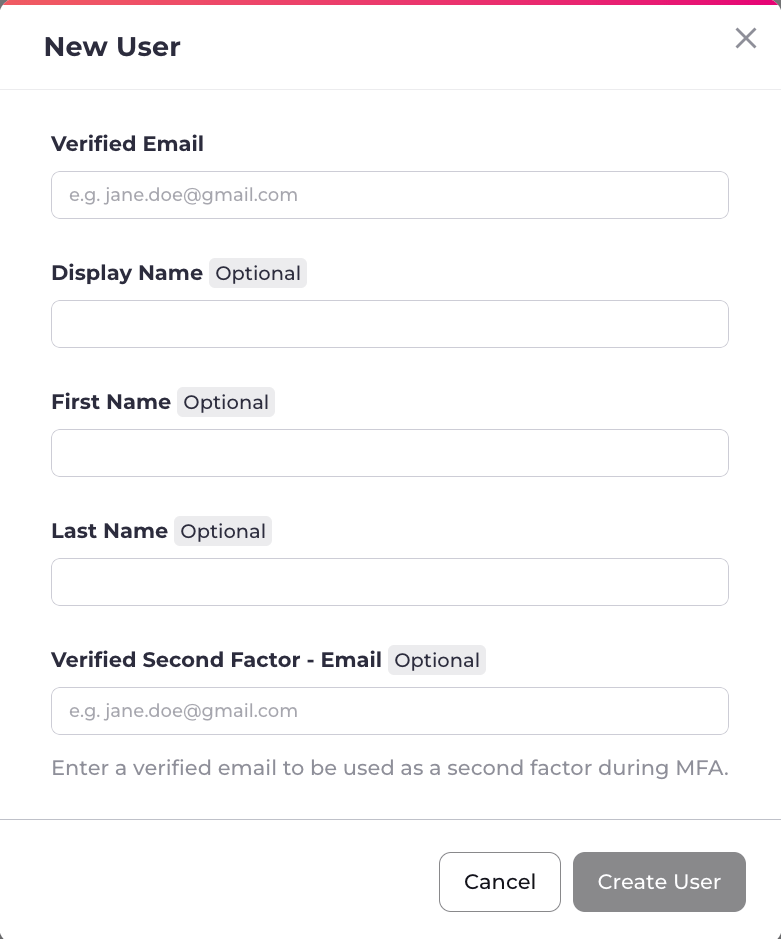
Enter the required values:
- Email - Enter the email address of the new admin user.
- Display Name (Optional) - Enter the display name of the new admin user.
- First Name (Optional) - Enter the first name of the new admin user.
- Last Name (Optional) - Enter the last name of the new admin user.
- Verified Second Factor - Email (Optional) - Enter the verified second factor email address of the new admin user.
- Click Create User.
Add a New User
You create a new admin user by selecting Add User from the Users page.