

- Download the header template files
- Upload the (Replace) header template files
- Edit the SMS template file
- Test the SMS templates
-
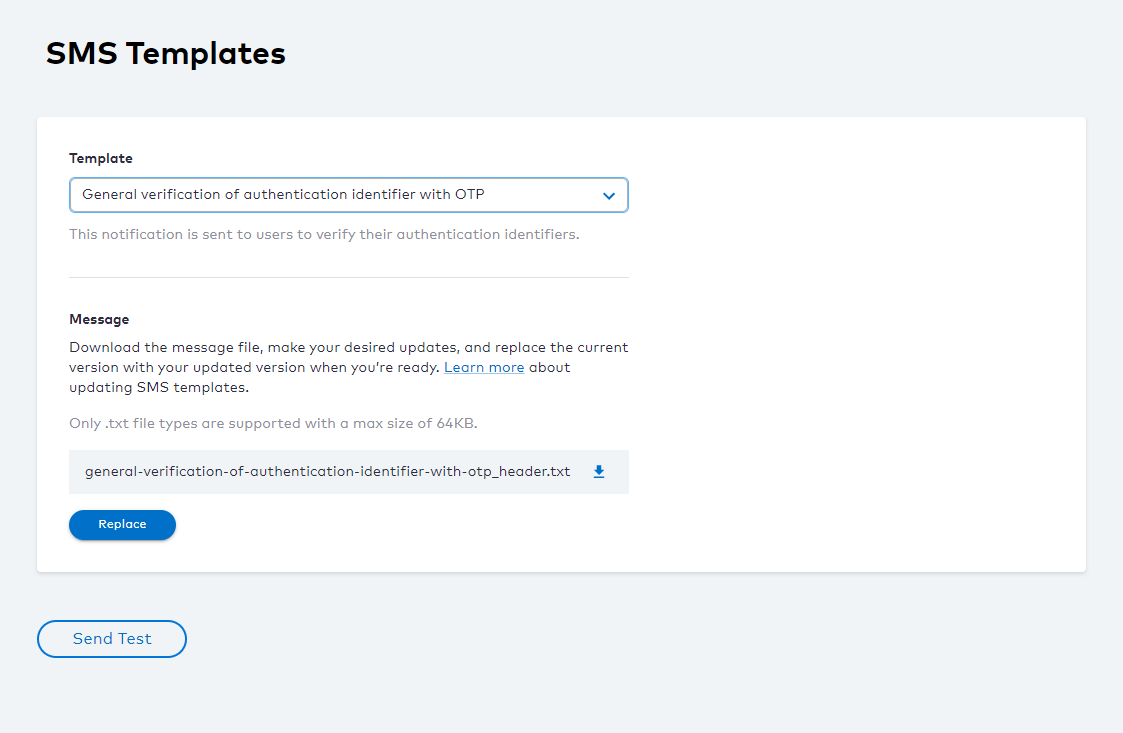
Navigate to the Admin console > Branding > SMS Templates and select a notification Template from the dropdown list.
-
To configure a Header template (.txt file), click the

- Open the local template file for editing, make your changes, and save your updated file. See About Notification Service Templates and Notification Service SMS Templates for more guidance.
- Click Replace and select your Header txt file and click Open to complete the operation.
- To verify your template updates, select Send Test to send a SMS notification to the destination specified. The SMS Provider sends a notification to the phone number/account specified. Note: Any future template file downloads retrieves the latest version of the template file that was last uploaded. When you choose to Replace the template file, the current template file is overwritten. It’s recommended to save a local copy of your template file(s) if you need to roll back to a previous version.