

- It is recommended that the setup of your Azure account and application be performed twice:
- Azure staging > Our staging environment
- Azure production > Our production environment
- The URLs for our staging and production environments are required. Your Amdocs representative can provide you with this information.
-
Register a new App as follows:
- Log in to your Azure account and navigate to Azure Active Directory > App registrations.
-
Create a new application by selecting + New registration.
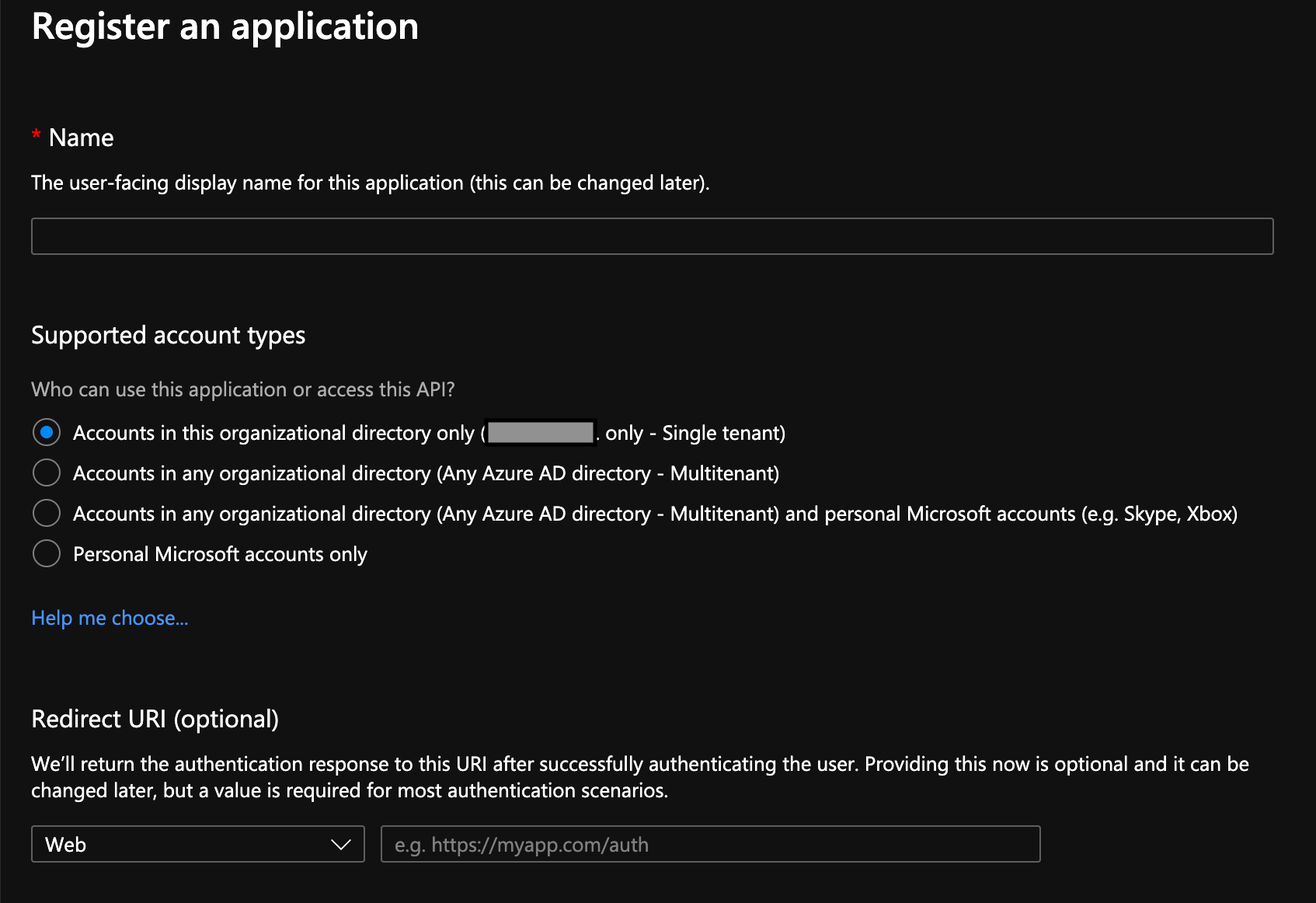
- Enter a Name.
- Select a Supported account types option. Consult your security organization and the Azure documentation. Record this choice because your OIDC Discovery Metadata URL depends on this choice.
- Leave the Redirect URI (optional) field blank. You’ll provide this information later.
- Select Register. The application configuration Overview page appears.
-
Generate a Relying Party OAuth Client Secret on the Overview page as follows:
- Select Certificates & secrets. The Certificates and Secrets page appears.
- Click + New client secret. The Add a client secret panel appears.
- Provide a Description and an Expires length that follows your security organization’s guidelines in the Add a client secret panel.
- Select Add.
- Copy the Value corresponding to the newly-created client secret into a .txt file. This is the Relying Party OAuth Client Secret that you will configure with the platform later. Note: Any changes made to the Client Secret value must be communicated with your Amdocs representative.
-
Configure the Redirect URIs as follows:
- Select the Overview tab.
-
Select Add a Redirect URI.
The Authentication page appears.
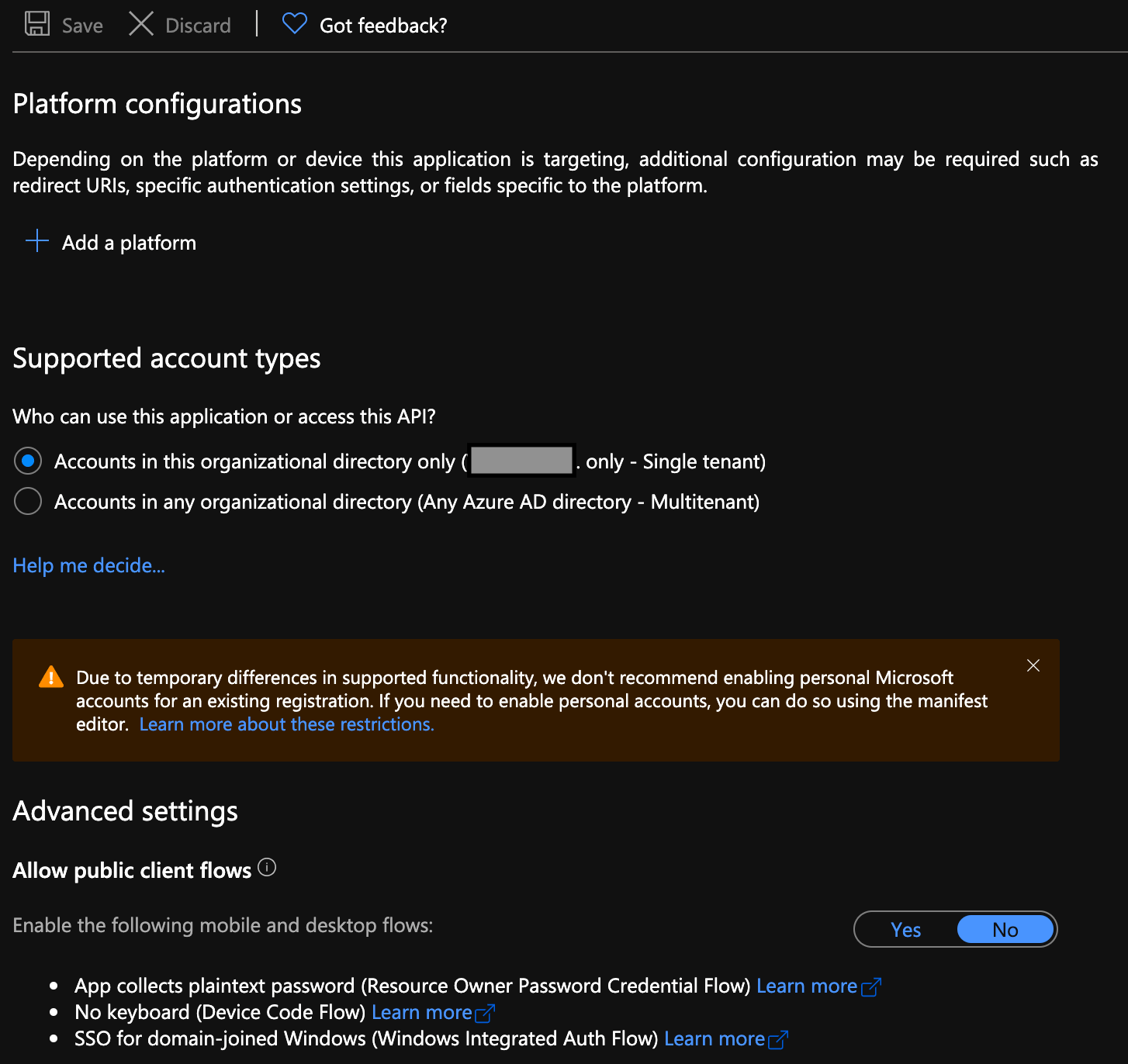
- Select Add a platform under Platform Configurations. The Configure platforms panel appears.
- Select Web in the Configure platforms panel.
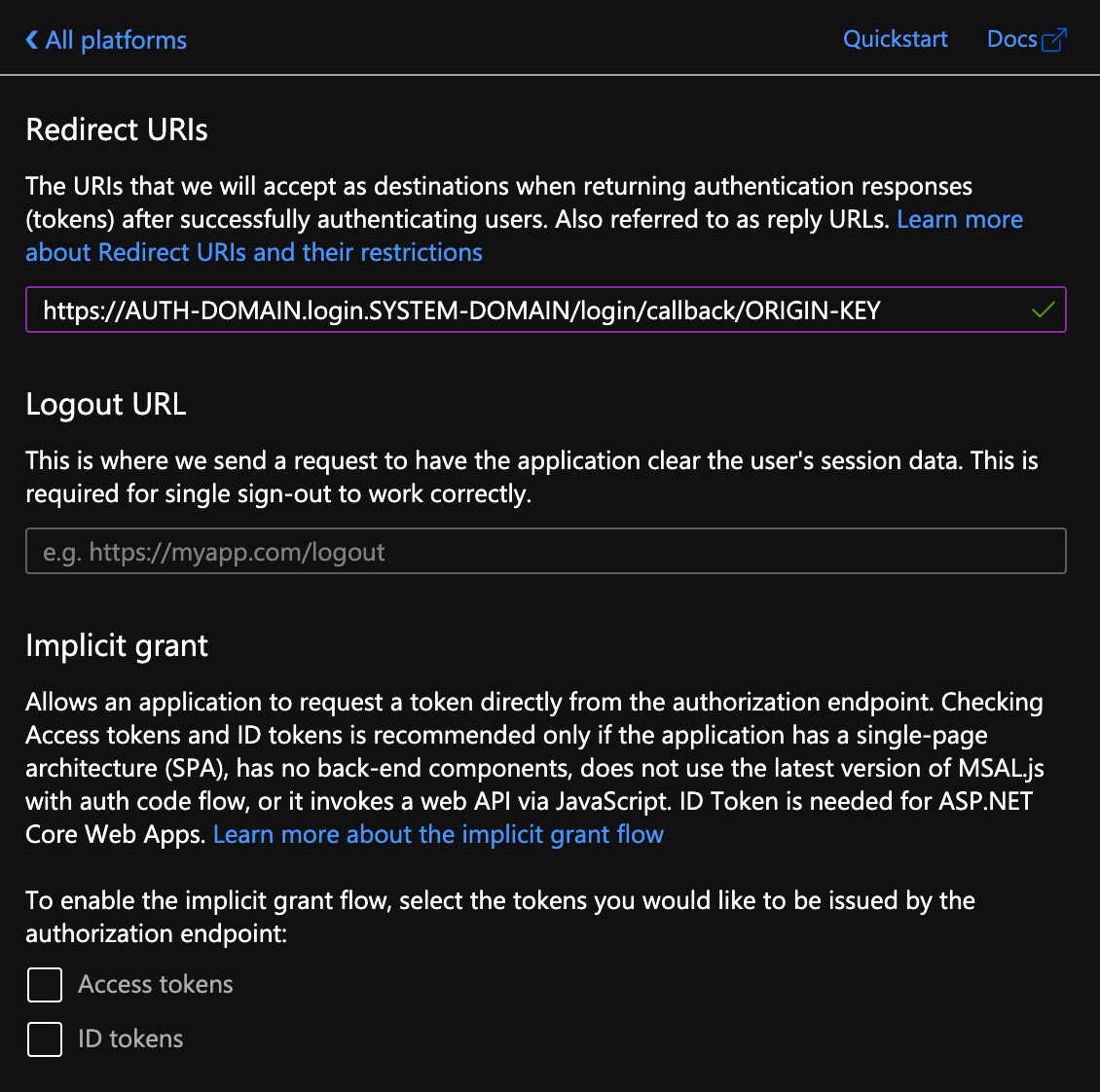
- Under Redirect URIs, enter either our production or staging implementation URL as relevant. To obtain this information, speak to your Amdocs representative. Note: Once you add a URI, select Add URI to add any additional URIs.
- Leave the Logout URL field blank.
- Select the Access Tokens and ID Tokens check boxes in the Implicit grant section.
-
Select Configure.
- Return to the Overview page.
- Select Endpoints in the top panel.
- Copy the OpenID Connect metadata document to the .txt file.
- Return to the Overview page.
-
Copy the following values to the .txt file.
- Application (client) ID
- Directory (tenant) ID
-
Ensure the .txt file contains the following information:
- Application (client) ID
- Directory (tenant) ID
- Client Secret
- OpenID Connect metadata document
- Encrypt the .txt file and pass it to your Amdocs representative for integration.
- Add the users that will use our platform to the newly created application in Azure AD.