

Announcements
The following are MarketONE Connect Announcements:- We are migrating documentation from MarketONE Developer site at https://developer.m1amdocs.com/documentation/ to our Knowledge Center at https://docs.vindicia.com/. New documentation updates will only be available in the Knowledge Center.
- We are in the process of updating documentation and UIs to reflect new product names for the following:
- IdP UI renamed to Identity app
- Admin app renamed to Admin console
- Care app renamed to Care console
Connect Features and Enhancements
This section describes the key updates in this release:Backup codes for Two-Factor Authentication (2FA)
As of this release, Connect supports backup codes for two-factor authentication (2FA) and multi-factor authentication (MFA) through API calls. Backup codes are a set of unique codes that an end user can submit if their 2FA/MFA isn’t accessible. Connect can generate a set of backup codes once 2FA is enabled within your tenant. Some scenarios where a backup code is needed may be when an end user loses their phone, or they’re unable to open the authenticator app to complete their 2FA process. The end user enters a backup code to gain access to the requested service or resource. Once the backup code has been used, it’s no longer valid. If an end user needs to enter a backup code again, they select the another code from the generated set. The connect REST APIs used to create and delete backup codes are:
Additionally, the Onboard and Authenticate V2 Process supports backup codes during the 2FA/MFA challenge step. To improve overall security and enhance the user experience, new notifications and UXDR events are available.
OIDC Client Management
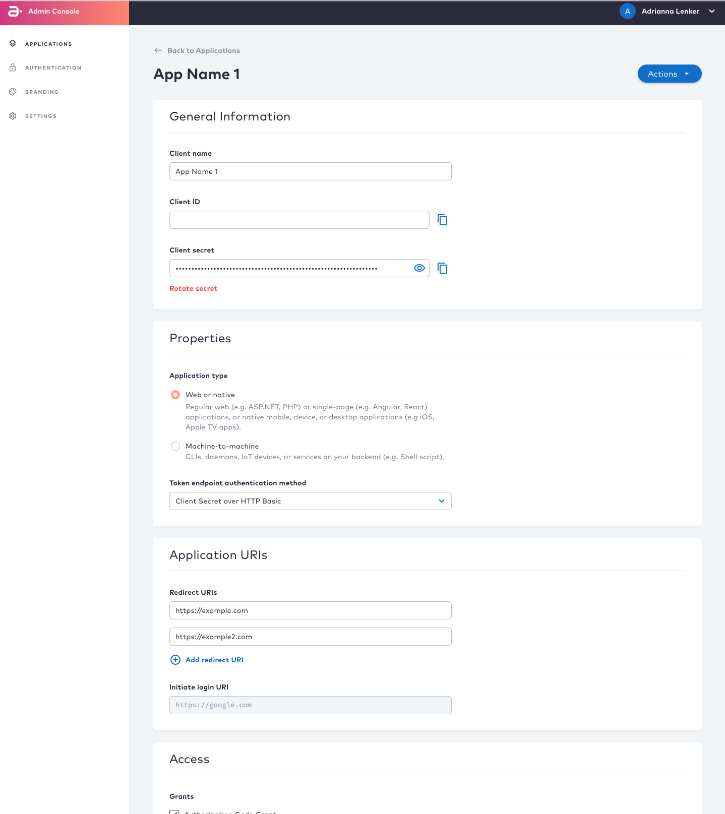
Connect provides out-of-the-box standard grants or authorization flows for web/native and machine-to-machine (M2M) application types. Depending on the configuration, only the relevant scopes are visible for each application type and associated grant. This dynamic configuration simplifies the process to add new clients and reduces configuration issues with grants and scopes. Note: See the Admin Guide for more details on these features. OIDC Client Creation The OIDC client creation process completes in a minimum amount of time and steps. Connect supplies defined authorization flows and access management controls to help you create a custom application.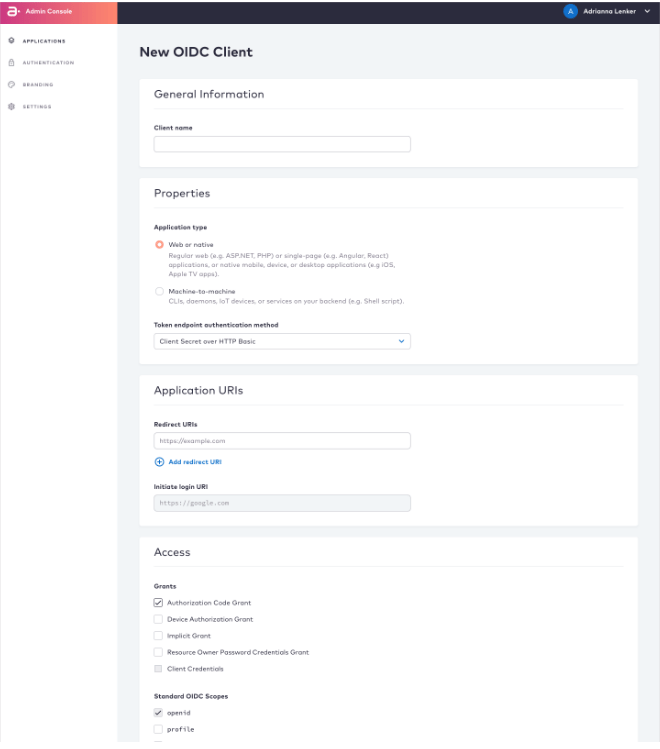
Email Allow-list
As of this release, admin users can create a list of email domains that your end users are allowed to use for their onboarding/authentication. By implementing this type of list, end users can only submit emails from a domain that’s present on the allow-list. By customizing the types of emails that your end users are allowed to use, you can implement secure email standards to minimize security breaches from unsafe or malicious domains. Connect can be configured with either a block-list or allow-list, but not both. The allow-list supersedes the block-list and is the only list used to verify if the end user has a valid email. This security layer ensures only authorized users are able to access services and resources. Note: This setting is enabled by entering a comma-separated list of email domains in the Admin console.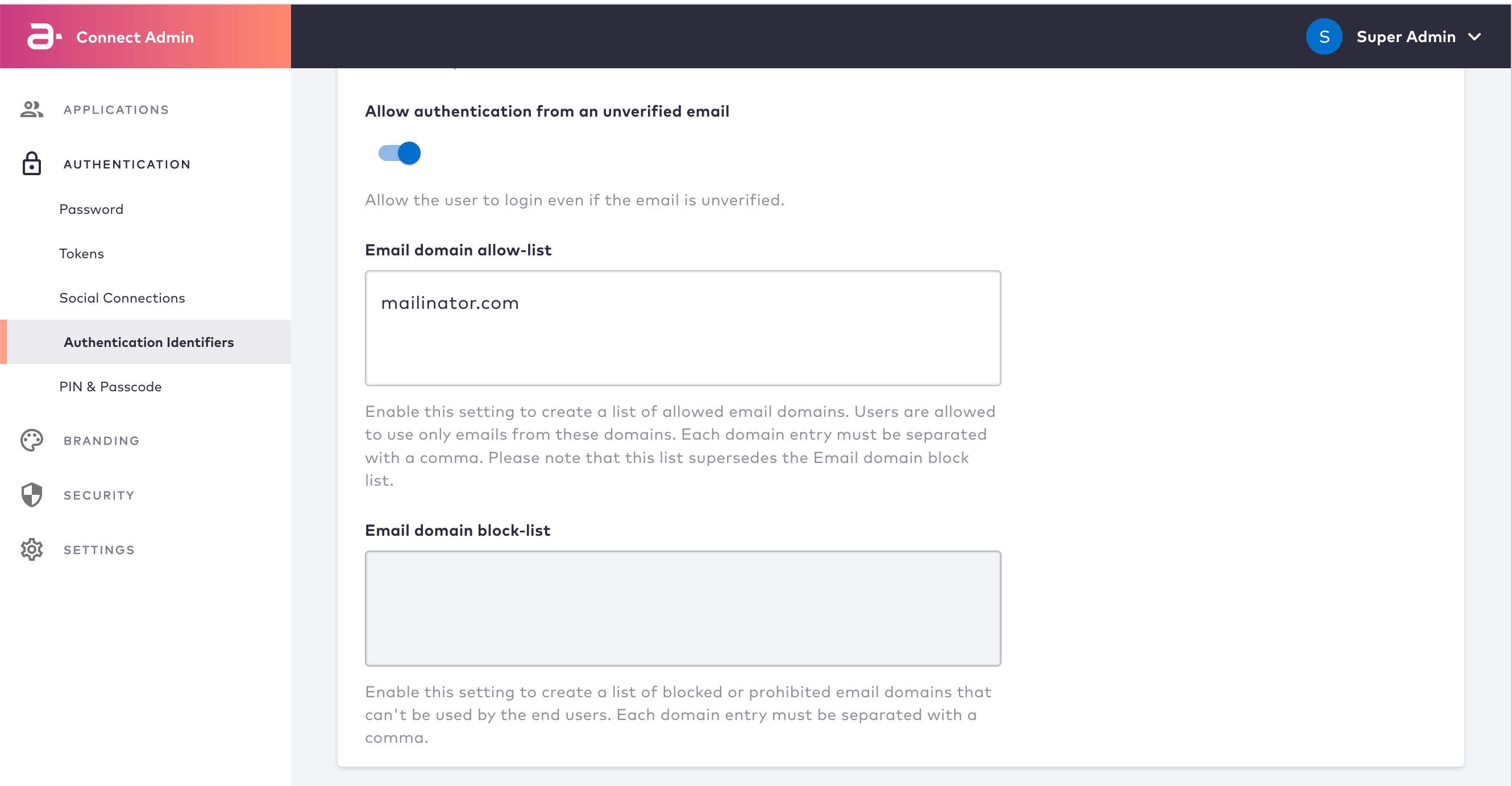
User Data Record (UXDR®) Events
As of this release, the machine-to-machine (M2M) and impersonation calls, issue and record specific user history event(s). These events are viewed from the Care console on the selected end user’s activity page. These entries provide more information to help administrators troubleshoot and resolve end users’ issues as quickly as possible. The UXDR User History events show following events and information:- The display name of an impersonator, such as a Care Representative or Super Admin, that’s performed an action on the behalf of an end user.
- M2M applications display events with the machine client id (m2mClientId) and name (m2mClientName). The m2m prefix makes it easy to distinguish machine type events from other user type events, reducing time to find the correct information and relevant events.