
Announcements
The following are MarketONE Connect Announcements:- We are migrating documentation from MarketONE Developer site at https://developer.m1amdocs.com/documentation/ to our Knowledge Center at https://docs.vindicia.com/. New documentation updates will only be available in the Knowledge Center.
- We are in the process of updating documentation and UIs to reflect new product names for the following:
- IdP UI renamed to Identity app
- Admin app renamed to Admin console
- Care app renamed to Care console
Connect Features and Enhancements
This section describes the key updates in this release:Identity App’s Error Reporting for One Time Password (OTP)
From this release, the Connect Identity app handles OTP related error messages on a more granular basis depending on the use case(s). Connect informs the end user about the error, why it occurred, and what steps they need to take next. This information helps end users resolve their issue efficiently to complete their authentication process. Note: The OTP is also referred to as a verification code, OTP code, or simply just code.| End User Message | Description | Error Type |
|---|---|---|
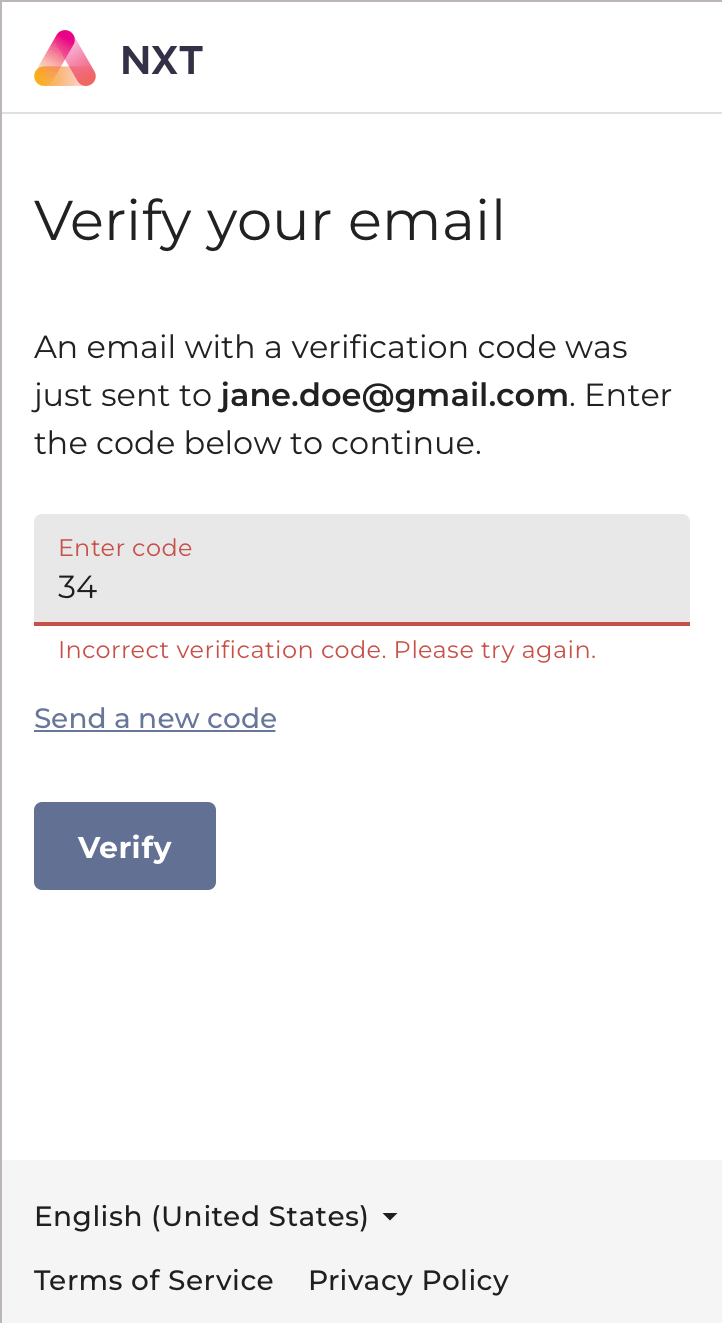 | The end user enters the wrong digits or the wrong OTP for the current session when prompted. The end user can enter the correct code or choose to have a new code sent. | invalid-act-consumption |
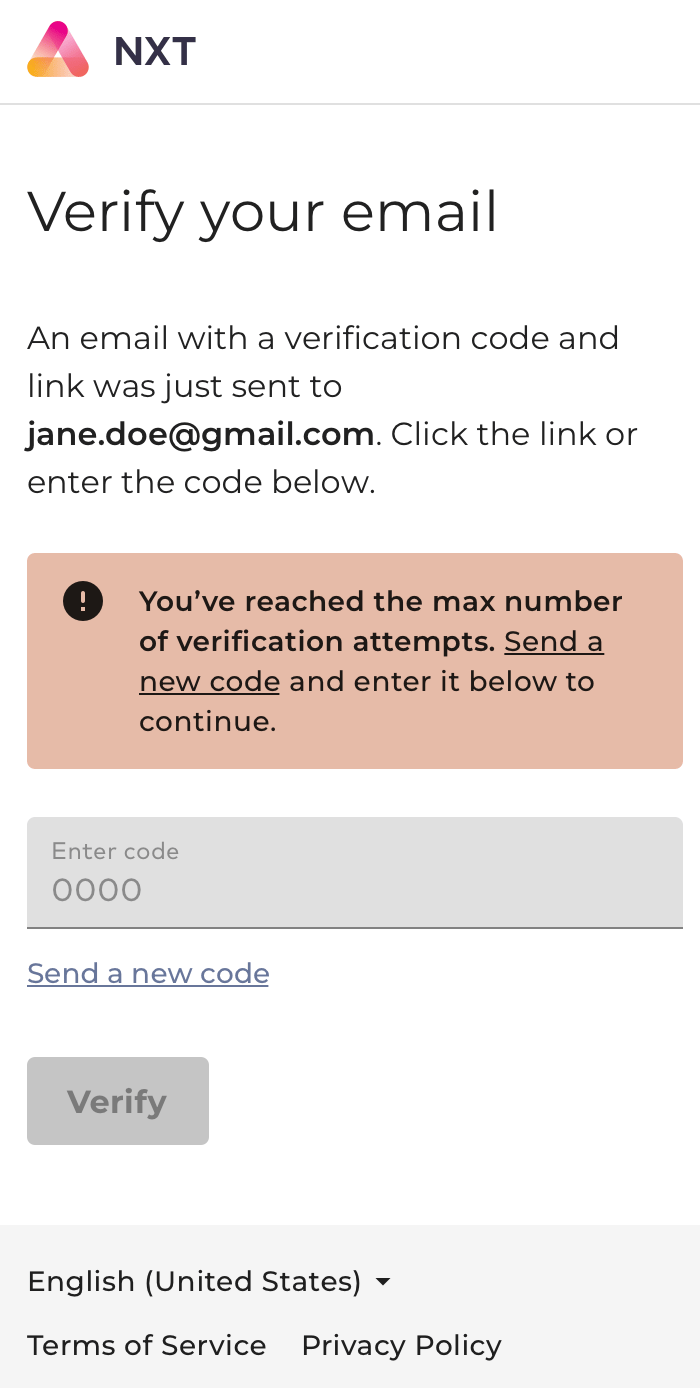 | The end user enters the OTP multiple times and exceeds the maximum attempts allowed (using the current OTP). The end user must request a new code. | action-token-retries-exceeded |
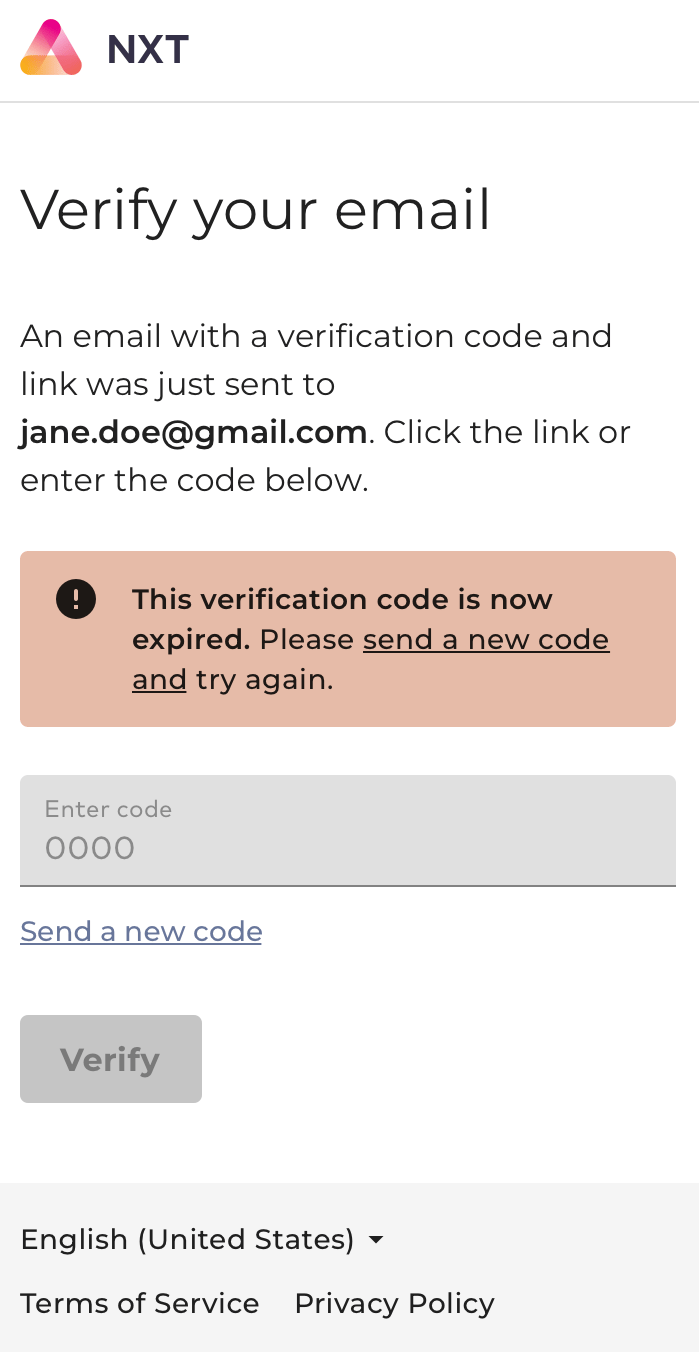 | The end user enters an OTP that’s expired. The end user must request a new code. | action-token-expired |
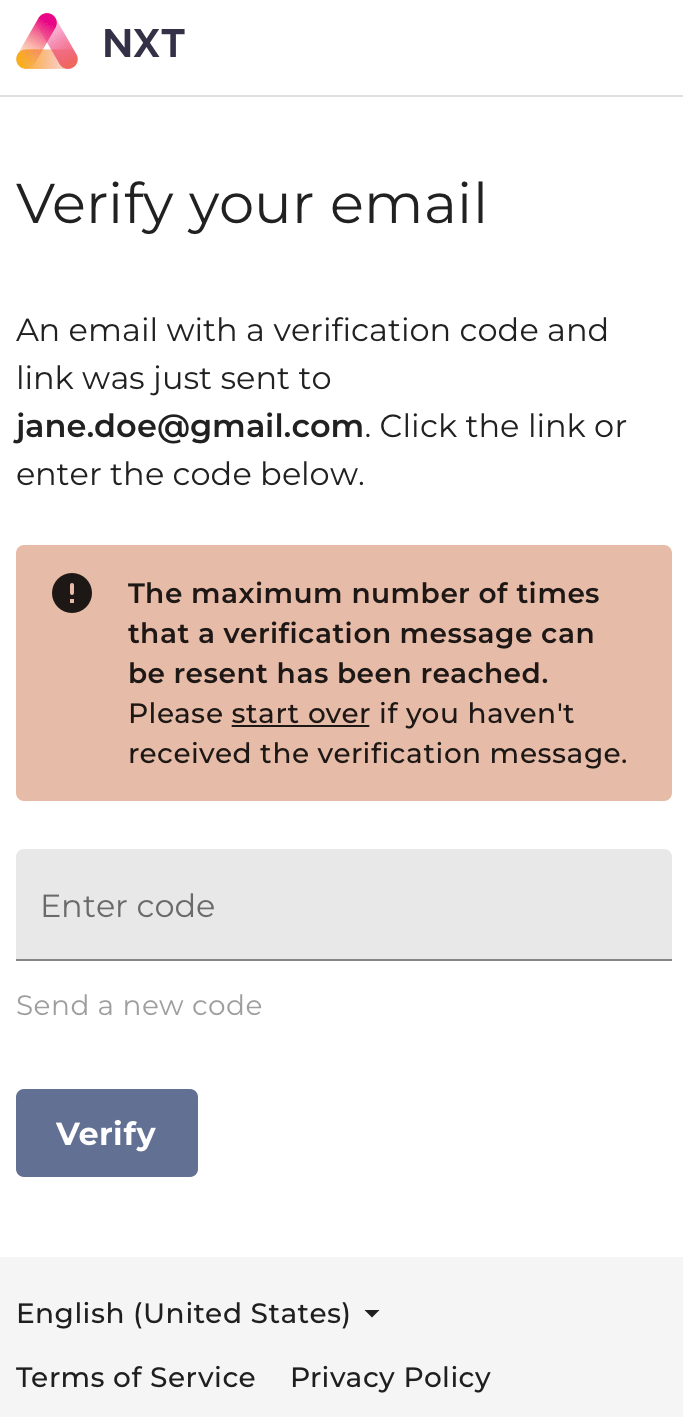 | The user reaches the maximum number of times they can request a verification code. The end user is sent a clickable link to start over. | token-max-resend-reached |
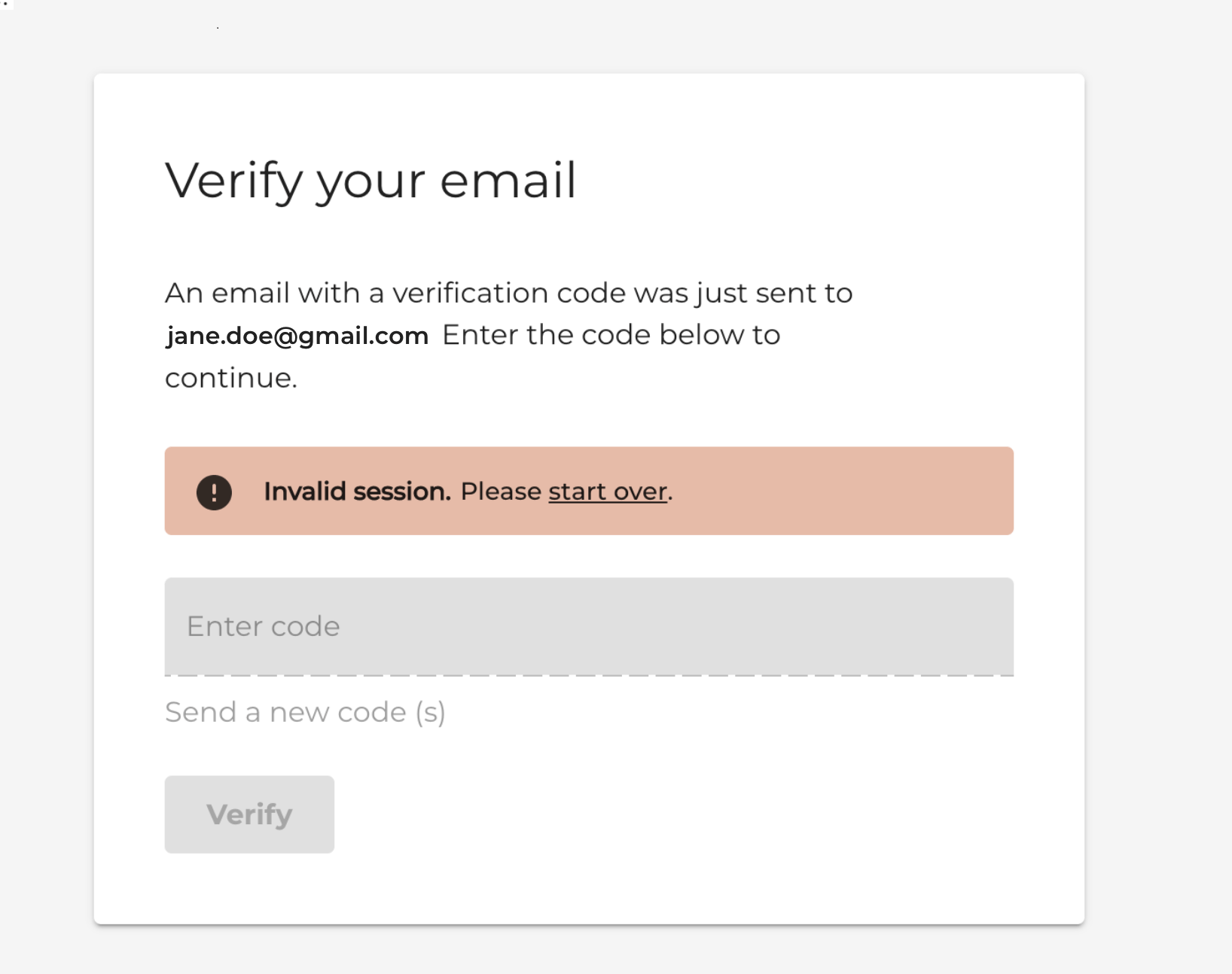 | The Proof Key of Action Token (PKAT) is invalid or has expired for the current session. The end user is sent a clickable link to start over. | invalid-pkat |
Admin User Management
From this release, the Admin console > Team Members page includes new user management options for roles and accounts:- Modify admin user’s role - This option allows admin users to change another team member’s role after they’re created. This feature is useful when a role is incorrect and needs to change from Super Admin to Care Representative or vice-versa.
- Suspend an admin user in the Activating status - The Activating status refers to an admin user who’s invited to a service. However, the admin user hasn’t activated their account by verifying their email/mobile yet. The suspend feature is helpful when admin user(s) are created by mistake, and require a suspension.

Privacy And Consent Management via APIs
MarketOne Connect now supports privacy and consent management via APIs. This feature helps businesses to comply with data privacy standards like General Data Protection Regulation (GDPR), California Consumer Privacy Act (CCPA), and Lei Geral de Proteçao de Dados (LGPD). These requirements ensure information is stored, processed, and transmitted securely according to the end user’s consents. Businesses create and manage privacy partners by using Connect’s APIs to communicate with end users to obtain their consent about data the business collects and stores. These APIs also allow end users to manage their own privacy and consent. From this release, the following use cases are supported:Machine-to-Machine (M2M) Clients and Client Credentials Grant
From of this release, Connect supports the creation of M2M client applications using Connect’s OIDC-based APIs and a Client Credentials Grant type (RFC 6749 section 1.3.4). Connect’s M2M APIs use access tokens for authentication within the OIDC framework. Connect allow customers to manage Connect entities, and synchronize them with customer information in their own systems. See the following Connect Activation APIs used for machine clients. Configure and view/edit M2M client type applications from the Admin console > OIDC Clients page.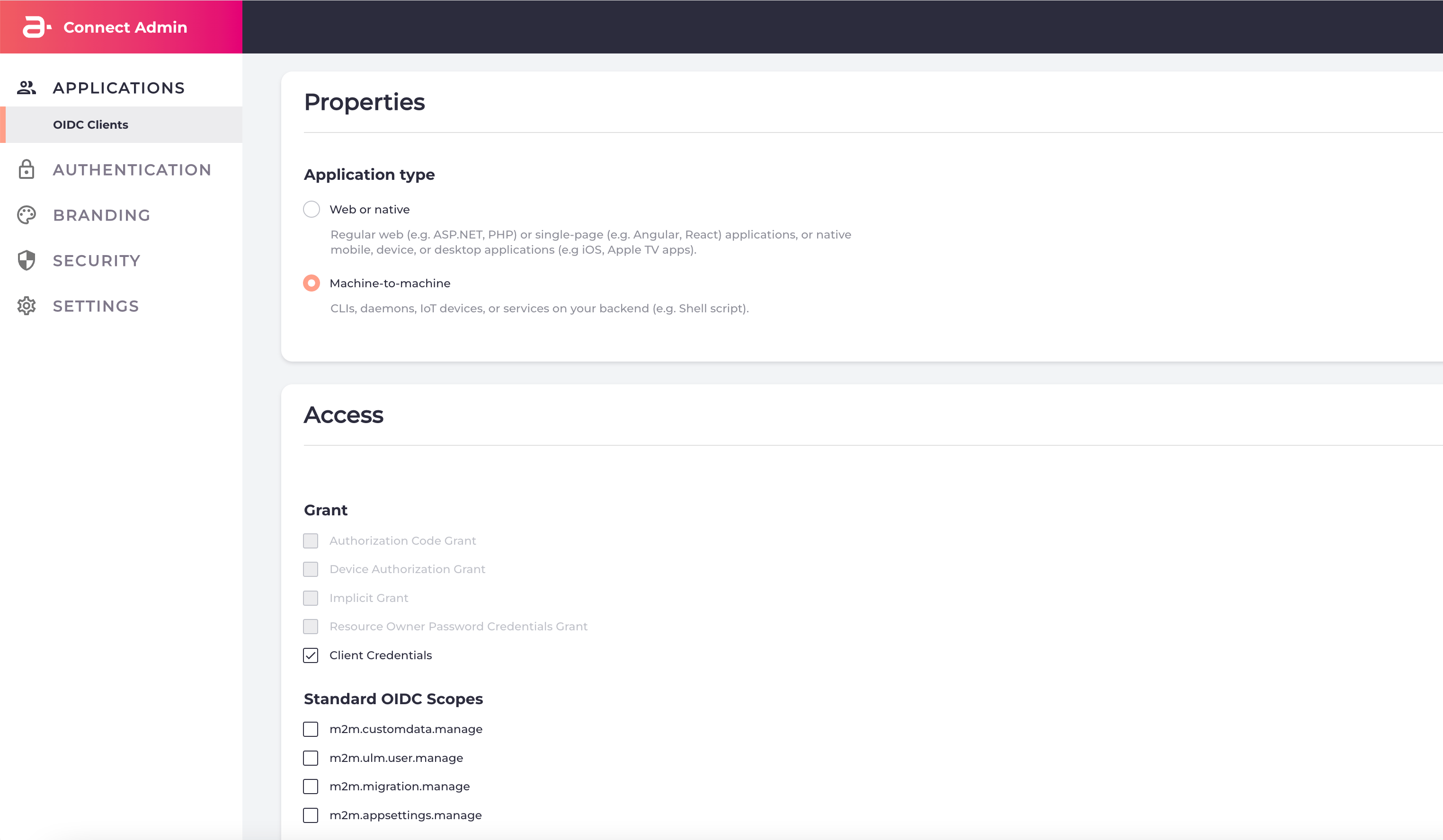
Search Users by User ID and External User ID
The Connect Care console’s enhanced search options allow you to find end users based on their User ID or an External User ID. Care representatives can manage/view all types of end users, and differentiate between the different types of end users. For example, an end user authenticated by the Connect Identity app are assigned a User ID from Connect. End users federated by an external IdP are also assigned an External ID from their external IdP in addition to their User ID from the Connect Identity app.
Authenticate With Magic Link When User Has Password
As of this release Connect supports authentication/login with a Verification link (Magic link) even if the user has a password. Majic links are implemented by using the associated notification template to onboard the end user. See the Admin console templates for more details. This capability is helpful for applications that want to accommodate users that have forgotten their password but do not want to reset it, or simply do not want to type in their password.Email Domain Block-list
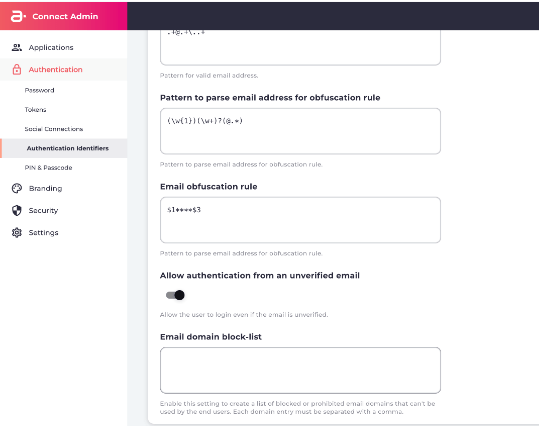
As of this release, admin users can create a list of blocked or prohibited email domains that can’t be used by the end users. This setting is enabled once you’ve added an email domain to the block-list. Additional email domains can be added to the list by entering a comma-separated list of email domains in the Admin console > Authentication > Authentication Identifiers page.