

-
Navigate to the OIDC Clients page by one of the following methods:
- Sign in to the Admin console. By default, the OIDC Clients page appears.
- If you are already signed in and you are on any other page, then click OIDC Clients on the left-hand navigation panel.
- Click New OIDC Client on the upper-right corner. The New OIDC Client registration page opens.
-
In the General Information pane, enter the following:
- Client name is the name used to reference or query your application. The Client ID and Client Secret are auto-generated fields that are associated with the Client name. This value can be viewed/updated after the OIDC client has been created.
-
In the Properties pane, choose the type of application to be created:
- Web or native applications - standard web apps including single-page, and native mobile/device apps.
- Machine-to-machine - supports devices and M2M calls to resources such as a back end service, CLIs, and applications. See M2M Processes for more details. Note: M2M applications use Client Credentials grant and m2m scopes only.
- Token endpoint authentication method - The type of authentication method defines how your relying party authenticates with Digital Identity Management. Authentication is required for Authorization Code Grant or Device Authorization Grant flows, in order to prove that the Authorization Code or Device Code is being used by the genuine client and not by a third-party attacker. Select the required token endpoint authentication method from the following:
-
In the Application URIs, enter the following details about your application:
- Redirect URIs - Configure a list of URLs with OIDC landing pages for all web applications (UIs) and mobile applications that use this client. Applications using the Authorization Code Grant must have a redirect URL configured. Applications using the Device Authorization Grant and Client Credentials Grant don’t require this type of redirect URL. To add or delete Redirect URLs (dependent on the specified flow) choose one of the following options:
- To add a redirect URL, enter the url and click the

- To delete a redirect URL, click the

- To add a redirect URL, enter the url and click the
- Initiate login URI - a redirect to a landing page that’s used by your application after a successful authentication.
- Redirect URIs - Configure a list of URLs with OIDC landing pages for all web applications (UIs) and mobile applications that use this client. Applications using the Authorization Code Grant must have a redirect URL configured. Applications using the Device Authorization Grant and Client Credentials Grant don’t require this type of redirect URL. To add or delete Redirect URLs (dependent on the specified flow) choose one of the following options:
-
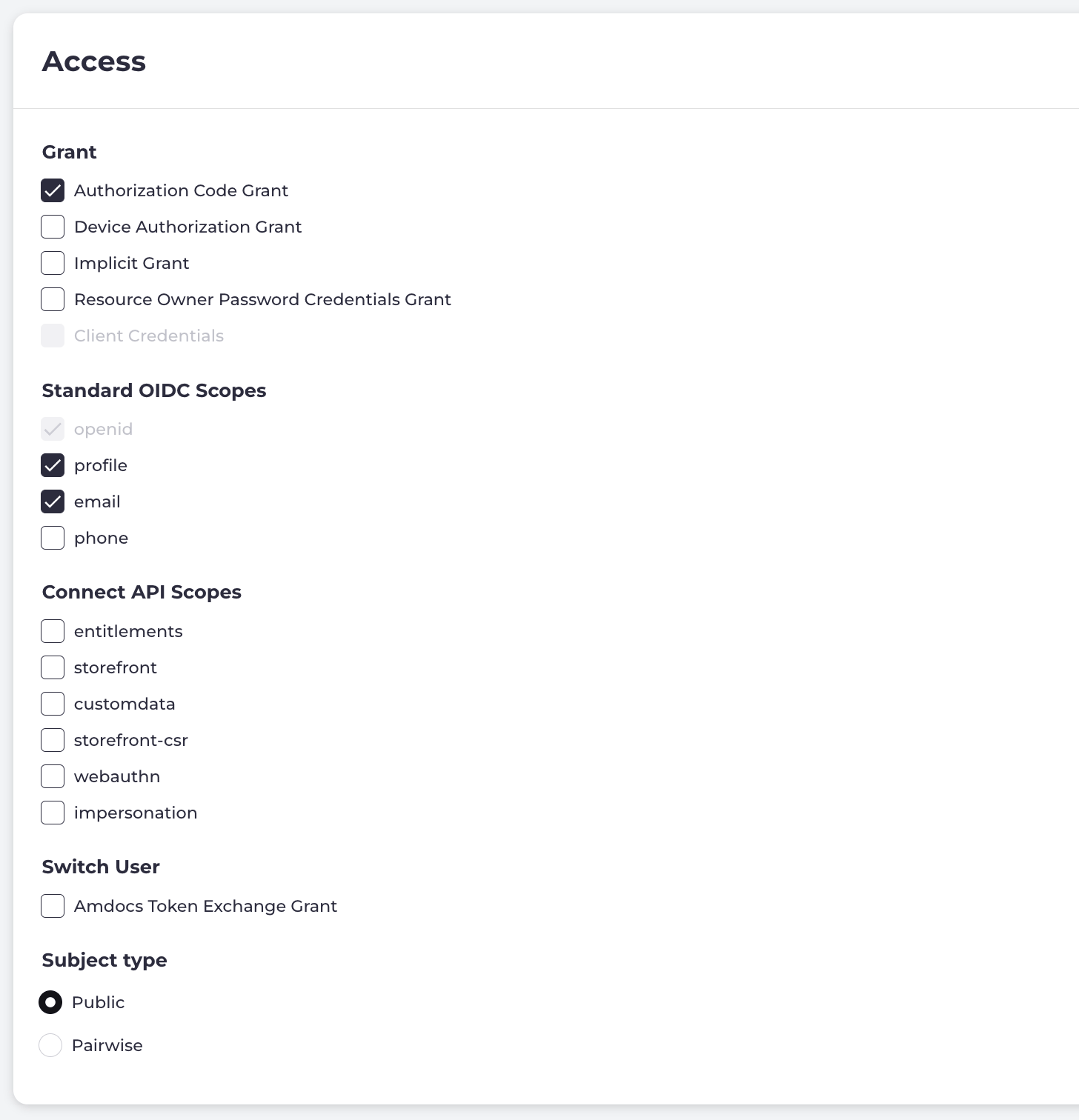
In the Access pane, select the relevant grants and scopes:
-
-
-
Scopes- Scopes are set depending on your application type as defined by the web/native or machine-to-machine selection. The scopes available for the selected grant are listed in the relevant tables. Select the required scope data that the client can request from Digital Identity Management when configuring your OIDC client.
Note: These scopes are available for all authorization flows except the Client Credentials Grant. See the Scopes for Client Credentials below for more details.
-
Subject type - Select the required Subject type from below that determines how the
subvalue will be handled across multiple clients.- Public - Clients receive the same
subvalue for the same Digital Identity Management user. This allows them to correlate data. Use this Subject type for all clients that are intrinsic to your application, and handled internally by your organization. - Pairwise - Clients receive their own unique
subvalue. This prevents those clients from correlating the user with other relying parties. Applications that are handled by third parties normally use this Subject type for the issue of user privacy.
- Public - Clients receive the same
-
In the Tokens section, define settings to control token behavior and the Digital Identity Management interactions.
- Issue refresh tokens - Turn the toggle on or off to determine whether your application will use refresh tokens. We recommend you to use refresh tokens instead of long-lived (that is, a long expiration period) access tokens. This option is toggled on by default. If the toggle is on, provide the following details:
- Refresh token expiration - Defines how long before a refresh token expires. We recommend that this be several days, depending on the lifetime of the access tokens, and the frequency with which you expect end users to make use of your application. For example, if a user opens your application once or twice a week, and the refresh token expiration is set to week, minimizes the times a user needs to re-authenticate repeatedly. The user continues to have a valid token for the week to access their services.
- If you require to set expiration for refresh tokens, enter the value of expiry (seconds) in the Refresh token expiration field.
- If you require the refresh tokens to never expire, then select No expiry.
- Re-use refresh tokens - If you set your refresh tokens to expire, then we recommend that you disable re-use of refresh tokens so that new tokens (with a new computed expiry date) are issued whenever a refresh occurs. This option is enabled by default.
- Revoke access tokens when refresh token is used - If you set your refresh tokens to never expire, which is considered secure, enable this option to make sure that only a single valid access token exists at any one time. This option is enabled by default.
- Refresh token expiration - Defines how long before a refresh token expires. We recommend that this be several days, depending on the lifetime of the access tokens, and the frequency with which you expect end users to make use of your application. For example, if a user opens your application once or twice a week, and the refresh token expiration is set to week, minimizes the times a user needs to re-authenticate repeatedly. The user continues to have a valid token for the week to access their services.
- Access token expiration - Defines how long before an access token expires. We recommend that you aim for a token lifetime approximate to the typical usage period (that is, how long a user typically interacts with your application). Although, you have the option to make access tokens never expire, we recommend that you do not leverage this option.
- To set expiration for access tokens, enter the value of expiry in the Access token expiration field.
- If access tokens are never to expire, then select No expiry.
- Identity token expiration - Defines how long before an identity token expires. Alternatively, your application can always use a valid access token to call Digital Identity Management OIDC
/userinfoendpoint to get the latest information about the user’s identity. If you require to set expiration for identity tokens, then enter the value of expiry (seconds) in the Identity token expiration field.
- Issue refresh tokens - Turn the toggle on or off to determine whether your application will use refresh tokens. We recommend you to use refresh tokens instead of long-lived (that is, a long expiration period) access tokens. This option is toggled on by default. If the toggle is on, provide the following details:
-
Select one of the confirmation prompts:
- Click Save to save the settings or changes.
- Click Cancel to exit without saving and return to the OIDC Clients page.