
Announcements
This release includes the following announcements:- Connect Cloud supports creation of Soft Profile (child or guest) users. An Soft Profile user is created and supported by a regular User (parent or service customer).
- Connect Cloud supports organizations to store additional custom data/metadata on Connect User, Runtime, and Group entities (for example, date of birth, preferences, favorites).
- Connect Cloud’s notification engine now includes support for customers to leverage Twilio’s SendGrid email service.
- Connect Cloud introduces a newOIDC-based Token Exchange Grant flow. This is custom token grant flow type, to cover cases when an end user’s device does not support browser access.
- Connect Cloud supports a set of standardized CSV and JSON format business reports that provide an overview of your user base, and the services they consume.
Connect Features
This section describes the key updates in this release.Soft Profile Users
A regular Connect User can now create Soft Profile Users (or SP Users) for the minors in their household and/or friends and family. An SP User is a Connect User ID that grants the end user limited access to one or more services to which the regular User is entitled. Some conditions apply:- Unlike a regular User, an SP User does not require a fully verified (that is, activated) authentication identifier (authN ID) in order to authenticate and access services.
- Instead, an SP User is authenticated into a service by the regular User (for example, the parent or service owner) first. In otherwords, the regular User authenticates first, and then selects to switch their profile to the SP User.
- Connect Cloud also includes functionality that allows the regular User to set a 4-digit master PIN.
- If the regular User has created more than one SP User, they can set a 4-digit for each SP User, or a single master 4-digit PIN for all users.
- When an SP User attempts to access a profile, or switches a profile, then either the master pin or the specific profile pin will need to be entered.
Custom Data
Connect Cloud’s identity management data model consists of 7 data entities:- User – a unique individual.
- Runtime – a physical endpoint to which services are delivered (for example, mobile device, desktop).
- Group – a collection of entities (for example, parent and child users in a household).
- Account – the relationship between a User and an organization, usually defined by a collection of subscriptions.
- Subscription – defines a service to which the end user is entitled to access. Usually collection of packaged features.
- Features – a fine grain entitlement that defines what a User can do within a service.
- Membership – a subset of subscriptions/features, typically useful for business-to-business use cases.
SendGrid Email Service Integration
Connect Cloud’s notification engine is now integrated with Twilio’s SendGrid service. This means that if your organization leverages SendGrid as your email notification service, Connect Cloud can quickly connect to your SendGrid account.Soft Profile Switch User Grant
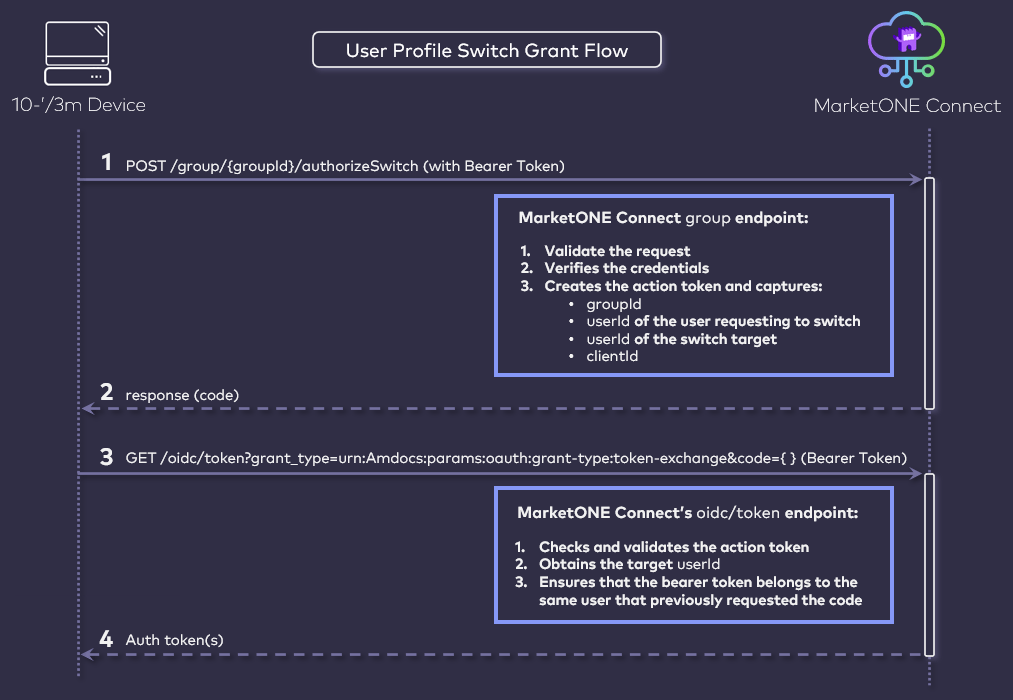
- In service of Connect Cloud’s new Soft Profile User feature, this release includes support for a new authorization grant flow to support cases where an end user needs to switch between multiple user profiles within an application. The primary use case for this function involves the following criteria:
- The end user is in an application (that is registered in Vindicia MarketONE Admin as an OIDC-based Relying Party).
- The end user is a regular User that has provisioned least one Soft Profile User under their regular User ID.
- The end user needs to be able to switch between the separate User profiles within the application, including:
- Regular User switches to to SP User’s view of the application.
- SP User switches back to to the regular User.
- One SP User switches to a separate SP User (if the regular User has provisioned more than one distinct SP User under the parent regular User ID). Each SP User could have their own preferences or permissions regarding the service based on the Custom Data associated to each User.
- The application is used in a 10 foot / 3 meter device, but that device does not support browser access (for example, certain digital media players, smart TVs, and set-top boxes). The application therefore needs a backend-only method to acquire an authorization token to switch to each User.
Business Reports in CSV and JSON Format
Connect Cloud includes a set of business reports that provide an overview of your user base, and the services they consume. As an administrative user, you can now call an API endpoint and receive reports within a specified time range, in CSV and JSON format. The reports include:Updates to the MarketONE Connect Admin Web App
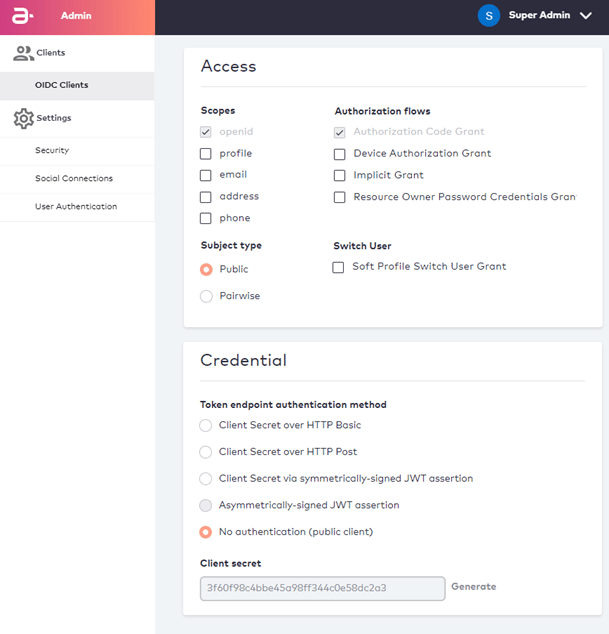
Connect Admin web application is an administrative console available to Connect Cloud customer organizations. From this application, your organization register and manages OIDC-compliant Relying Parties, as well as system settings that determine the general behaviour of your API-based Processes. As of this release, a few updates have been made to the Admin web app:- Public Client Type – When registering an OIDC-based Relying Party, you can now designate the RP as a “public” client. This is useful for implementations that leverage OIDC-based Device Authorization Grant flows, and for UIs without a backend. From the Admin web app, you can also specify that the client requires no authentication (public client). With this specification, public clients will not be required to supply credentials to the /oidc/token endpoint.
-
Soft Profile Switch User Grant – Connect Cloud currently supports a variety of authorization grant flows in support of OAuth 2.0 and its OpenID Connect (OIDC). In addition to Authorization Code, Implicit, and Hybrid authorization grant flows, the web app now includes Device Authorization Grant (or DAG) and Resource Owner Password Credentials grant flows. The DAG flow is used for 10 foot devices (Smart TVs, digital media players-Apple TV, Roku, and set top boxes). Resource Owner Password Credentials flow is used for cases where the RP needs to collect the end user’s authN ID and password itself, and then pass them along to the identity provider.
-
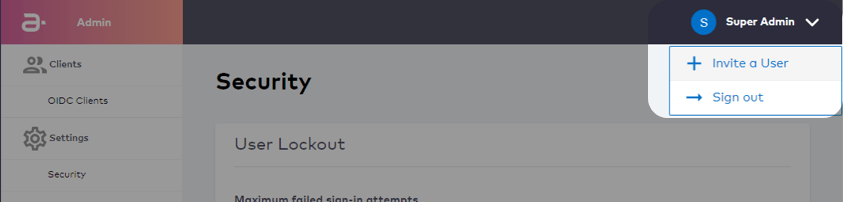
Invite Admin Users - An Admin user with the “Super Admin” role can now add new users to the Admin app. To do this, the Admin user selects the Invite a User under their drop-down menu in the upper right corner.
-
Reset Admin User Password - The Admin sign-in screen now includes a “Forgot your Password?” function for Admin users that have forgotten or misplaced their password.