
Announcements
There are no announcements for this release.Connect Features
This section describes the key updates in this release.New application settings
As of this release, Connect includes the following new optional application settings: Password Lifetime setting enforces routine password changes Your organization can enable the Password Lifetime setting to control how long an end user can use a password before they are required to set a new one. If an end user authenticates into your service while the setting is enabled, Connect first performs a check to see how long the end user has had their current password. If the password is expired, Connect then prompts for the end user to submit a new password before they can proceed. For example, if you enable and set Password Lifetime to 90 days (or 7776000 seconds), and an end user signs in 91 days after they set their password, then the relevant Process prompts for the end user to supply a new password before they can continue into the service. Once an end user provides an acceptable new password, Connect closes all sessions that they may have open, except for the current one. Password Lifetime has been added to the following Connect Processes:- Authenticate User
- Onboard, Authenticate, Associate Account, and Purchase — The new complex, “all-in-one” Process designed for service providers with an integrated billing account service (for example, MarketONE Subscribe).
Password Historical Check Count prevents the reuse of recent passwords
Your organization can enable the Password Historical Check Count setting to control the number of most recently used passwords that an end user is not allowed to reuse, when they are setting a new password.
For example, if Password Historical Check Count is set to 5, then an end user cannot reuse any of their 5 most recent passwords when they are setting a new password.
Password Historical Check Count has been added to the following Connect Processes:
- Authenticate User Process
- Update Password Process
- Recover ID and Reset Password Processes
- Onboard, Authenticate, Associate Account and Purchase
Password Historical Check Period prevents the reuse of a password for a set duration of time
Your organization can enable Password Historical Check Period setting to define a minimum amount of time that must pass before a previously used password may be used again.
For example, if you set Password Historical Check Period to 6 months (or 15,768,000 seconds), then once an end user replaces a password, that particular password can not be used again for 6 months.
Like the Password Historical Check Count setting described above, Password Historical Check Period has been added to the following Connect Processes:
- Authenticate User Process
- Update Password Process
- Recover ID and Reset Password Processes
- Onboard, Authenticate, Associate Account and Purchase
Enforce Account Association has been added to the following Processes:
- Onboard and Authenticate User with Social Account
- Onboard, Authenticate, Associate Account and Purchase
Support for unlimited OTP action tokens
Connect issues and redeems action tokens to link two or more Connect Processes to complete certain user tasks. Token delivery and redemption typically follows this flow:- An end user goes through a Process (for example, Onboard User with Email and Mobile)
- At the end of that Process, connect issues and delivers the action token to the user-supplied email address or mobile number.
- The end user retrieves and redeems that token through one of two methods, depending on the token type that they receive:
- The end user receives a redirect link with the full token value appended to the end of the URL string. The end user clicks the URL link and redirects to your client application, where your client takes that token value from the URL and redeems it with the GET /session/token API.
- The end user retrieves a short One-time Passcode (OTP) that corresponds to the token value stored in the cloud. The end user supplies the OTP to your client application, and your client then redeems the OTP with the GET /session/token API.
- Connect validates the token/OTP and initiates the subsequent Process (for example, Activate User).
New Connect API verifies an end user’s password
In the previous release, Connect exposed thePOST /user/verifyPIN API that verifies an authenticated end user’s PIN. As of this release, Connect now includes the POST /user/verifyPassword API that similarly validates an authenticated end user’s current password. This API does not perform or require a session switch between separate User profiles, and it is actually more efficient (that is, faster response time, lower size) in comparison.
Clients can require PINs and/or passwords within an authenticated context to restrict access to secure areas of a given application (for example, parental controls), or to confirm risk-sensitive actions (for example, confirming a purchase).
Enhancements to the Connect IdP UI
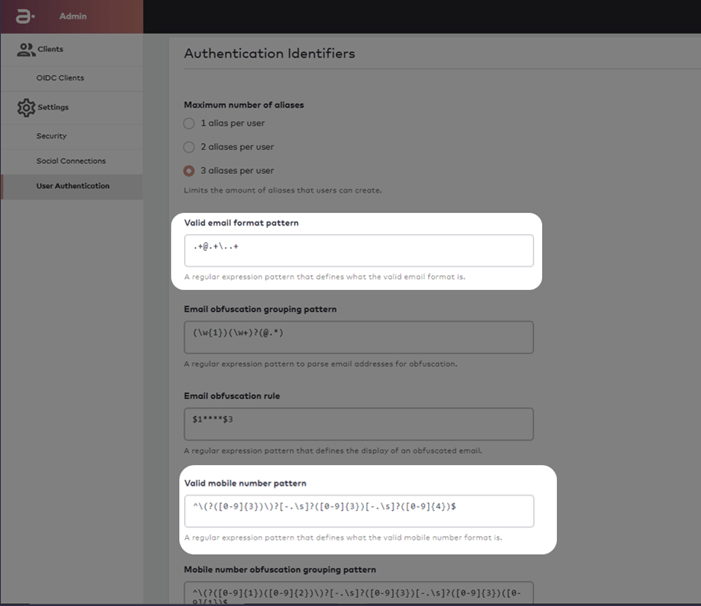
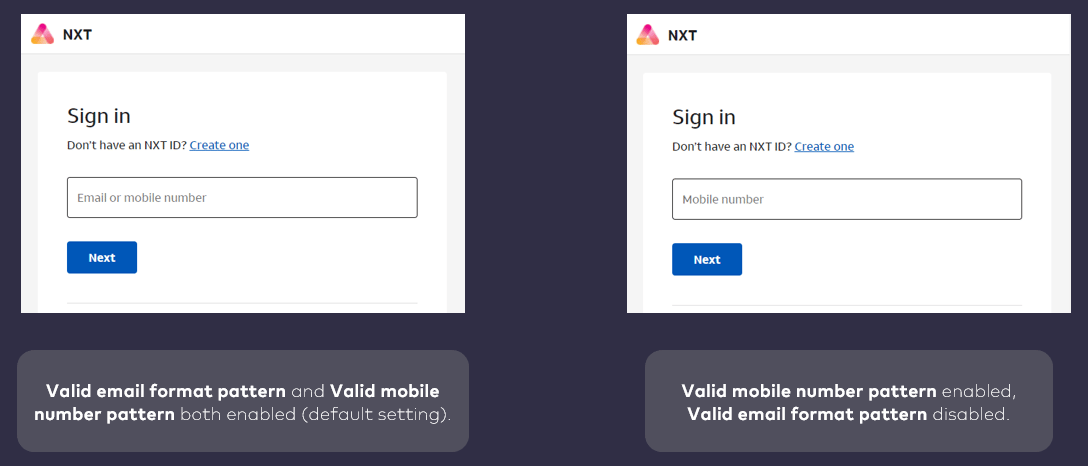
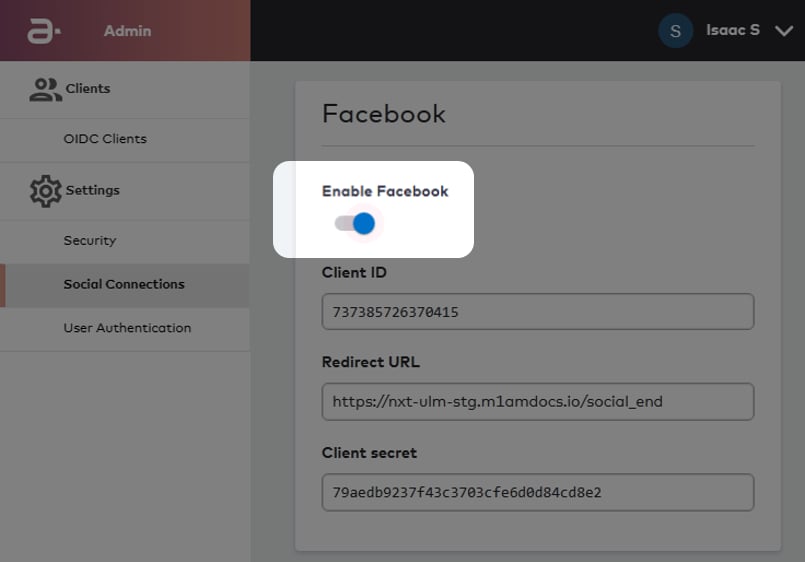
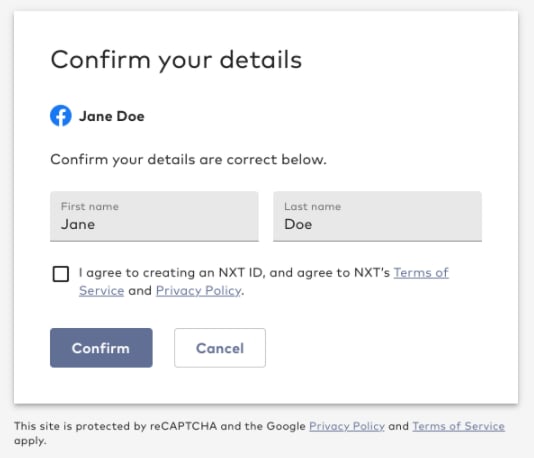
Connect’s Identity Provider (IdP) UI is an easy-to-implement onboarding, authentication, and ID management application for end users. This UI leverages the same Connect APIs and Processes that are available to clients for their own site or service implementation. The IdP UI is available as a packaged solution for organizations that do not want to develop their own sign-up/sign-in portal. As of this release, the IdP UI includes the following updates and enhancements: Enforce account association for new users The IdP UI can now leverage the above-mentioned Enforce Account Association setting. Service providers that leverage the IdP UI can now ensure that an end user can only onboard and authenticate once they verify ownership of an existing account in the service provider’s billing/subscription management service. Support for Associate Billing Account Process v2 The IdP UI now uses Associate Billing Account to User ID Process, version 2. The updated Process was introduced in the Connect (2021.09) release. Restrict different onboarding options on the sign-up screen for individual OIDC RP clients By the default, the IdP provides the following onboarding methods for end users:- Onboard with email address
- Onboard with mobile number
- Onboard with a social account provider (for example, Facebook, Google, etc)
Enhancements to the Connect Care UI
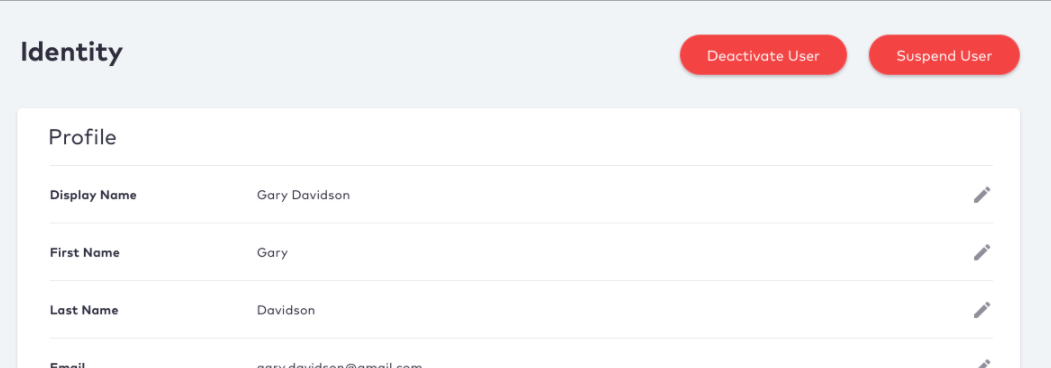
Connect Care is a ready-to-use web application for your organization’s customer support representatives (CSRs), also referred to as “Care agents.” Care agents can search for and view your existing Connect User profiles, and take certain actions against that profile on behalf of end users. As of this release, the single Full Name field for a selected user has been replaced with three individual First Name, Last Name, and Display Name fields. A Care agent can edit all three fields on behalf of an end user.