

Multiple Process Orchestration
Also known as the “Accept or Decline Process” for short, this Process allows an end user, who has been invited by another user to share an account or service, to explicitly accept or decline the invitation. Most user journeys are facilitated by a single Process. Conversely, there are some cases where Digital Identity Management orchestrates and links two or more Processes to complete a given journey.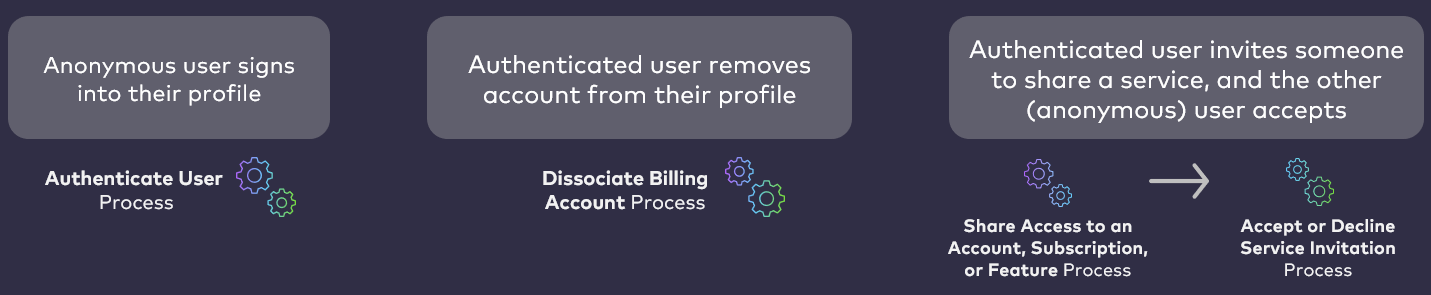
New User Creation
In the event that the invitee does not yet have their own Digital Identity Management User ID, then this Process automatically handles and completes the new user onboarding for the invitee. Once the invitee accepts, the Process will prompt your client for a password, and your client will need to pass that prompt to the front end.Process Invocation
Unlike most Processes, The Accept or Decline Process is not invoked with the Process Start API. Instead, your client leverages the Session Token API to redeem a Digital Identity Management Action Token that was generated by a previous Process (the Share Access to an Account, Subscription, or Feature Process. There are two methods to call the Session Token API in order to start a Process. Each method is appropriate to the type of notification that the user receives, either a clickable verification link, or a short One-time Passcode (OTP) that the user needs to give to the UI: Method one: redirect URL with token value- The user completes a Process.
- Digital Identity Management issues an action token, and sends a verification link in an email or SMS. The link is composed of a redirect URL back to your client application, and the full, actual token string is appended to the end of that URL.
- Once the user clicks/taps the link, they are redirected back to the client.
- The client automatically takes the token value directly from the URL, and uses it to call
GET /session/token?token={**token**}API. If the token is valid, then this triggers the Activate User Process.
- You’ll need to create the actual landing page that will invoke this API method when opened.
- You’ll need to set the redirect URL to that landing page in the Digital Identity Management Admin console, on the Security settings page. This allows Digital Identity Management automatically send the appropriate link to the user once they’ve completed the first half of their journey. See the Security Settings section in the Admin Guide for more details.
- The user completes a Process.
- Digital Identity Management sends a short, custom One-time Passcode (OTP) in an email or SMS. Digital Identity Management also returns a PKAT to the client.
- The client prompts the user to enter the OTP that was sent to them.
- The user retrieves the code, and enters it into the client.
- Once the user enters their code, the client then takes the OTP and the PKAT to call
GET /session/token?customToken={**otp**}&pkat{**pkat**}API. If both the OTP and PKAT are valid, then this triggers the Activate User Process.
Process Flow
This flow describes the Process at a high level. Preconditions- A separate user has sent the invitation using the Share Access to an Account, Subscription, or Feature.
- The user clicks on the invitation link in their email or SMS.
- The invitee’s browser redirects to the client application.
- The client invokes the Process, using the token taken from the redirect URL.
- Digital Identity Management responds with a prompt for the user to accept or decline.
- The user clicks Accept, and the client passes this back to Digital Identity Management.
- If the invitee is a new Digital Identity Management User, then the Process returns an additional prompt to the client for the user to complete their onboarding
- The client displays the user’s verified contact channel (the email or mobile to which the invitation was sent) and prompts the user to provide a password.
- The invitee submits a valid password, and the client passes that back to Digital Identity Management.
- Digital Identity Management fully activates the invitee’s User ID and the email/mobile registered to it.
- On the back end, Digital Identity Management updates the User entity status, and authN ID status, to
activated.
- On the back end, Digital Identity Management updates the User entity status, and authN ID status, to
- Digital Identity Management fully activates the invitee’s access to the shared account or service.
- On the back end, Digital Identity Management updates the User-to-Account (or Subscription, or Feature) association status to
activated. - Digital Identity Management updates the User-to-Group association status to
activated.
- On the back end, Digital Identity Management updates the User-to-Account (or Subscription, or Feature) association status to
- The invitee is now a fully activated Digital Identity Management User, and they have access to the shared account or service represented by the Digital Identity Management Account, Subscription, or Feature.
- Digital Identity Management automatically authenticates the user.
- Digital Identity Management sends a confirmation message to the account/service Primary User.
- The provided password does not match validation rules.
Settings
Certain aspects of the Process’ behavior are controlled by configurable system settings. Your organization can manage these and other settings in the Admin console.User Journey Diagram
This diagram illustrates the standard user journey using the Accept or Decline Process. [product: dim]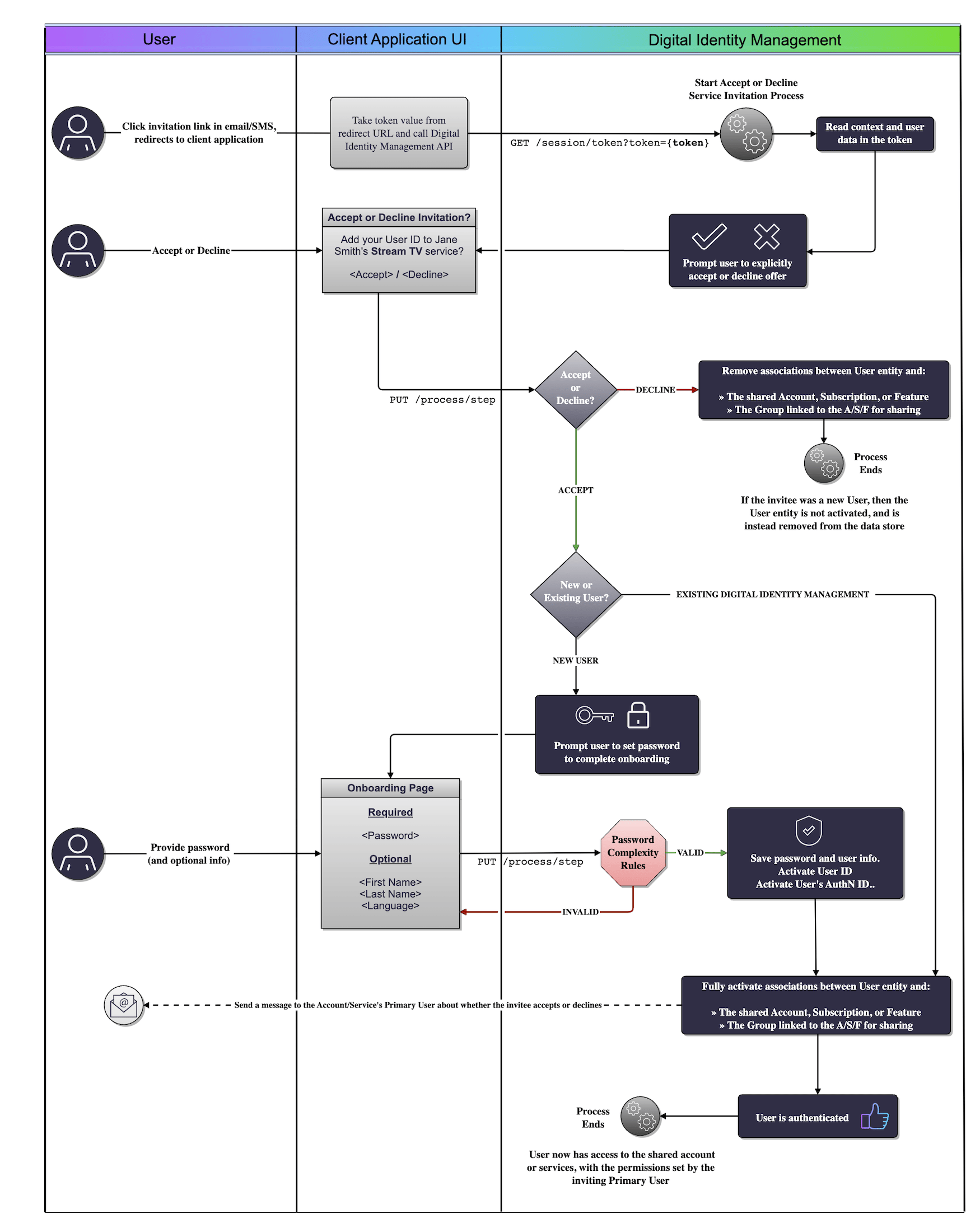
Use Cases
The following use cases provide guided API walkthroughs of this Process for client developers:- New user accepts invitation
- Existing user accepts invitation
- User declines invitation
- Accept or decline errors
- New user accepts invitation
- Existing user accepts invitation
- User declines invitation
- Accept or decline errors