

Multiple Process Orchestration
Many user journeys are facilitated by a single Process. Conversely, there are some cases where Digital Identity Management needs to execute two or more Processes to complete a given user journey.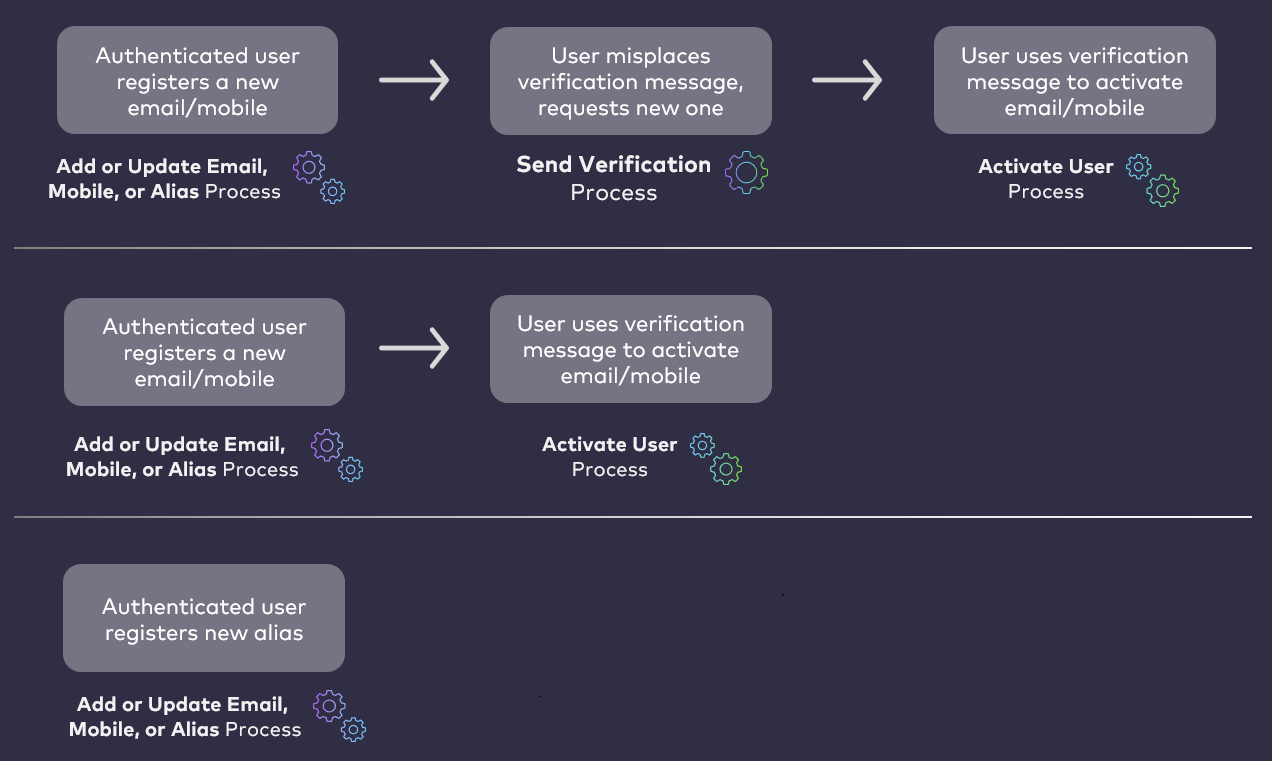
About AuthN IDs and Aliases
Authentication Identifiers (or authN IDs) are sometimes commonly referred to as usernames. When a user onboards and authenticates into Digital Identity Management, they supply an authN ID (email address or mobile number) and a password. An exception to this is when end users onboard and authenticate using their social accounts. A regular Digital Identity Management User ID requires at least one verifiable email address or mobile number to be set as an authN ID. This includes the social onboarding scenario wherein the social provider returns an email address or mobile number. Digital Identity Management also supports the ability for end users to add aliases to their User ID and to log in with them. For example, your business may wish to enable users to authenticate with a desired nickname, or short-form account number.Process Flow
This table describes the Process functionality at a high level. Preconditions- The user is currently authenticated in Digital Identity Management
- The user selects to either add a new email, mobile, or alias, or to edit an existing one.
-
The user enters their desired new authN ID value, then clicks Add. The following conditions apply:
- The provided authN ID value must be unique across all of Digital Identity Management.
- The provided authN ID must be in a valid format.
- Email and mobile valid formats are defined in MarketONE Admin console’s Settings menu
- If the user is updating an existing authN ID, the old and new must have the same format.
-
Digital Identity Management registers the new email/mobile as an authentication identifier (authN ID). The authN ID is stored as a new attribute on the User entity. The attribute status depends on the operation:
-
If the user is adding a new a new email/mobile, then Digital Identity Management stores the attribute with an
activatingstatus. -
If the user is updating an existing email/mobile. then Digital Identity Management stores the attribute with a
pendingstatus. The following conditions apply:
- If the user is updating an email/mobile, they can still log into Digital Identity Management with their original email/mobile until the new one is verified.
- The user can update the same email/mobile multiple times before verification. Digital Identity Management keeps only the most recently updated value.
- If the user is adding or updating an alias, they can use it immediately.
-
If the user is adding a new a new email/mobile, then Digital Identity Management stores the attribute with an
- The new or updated email, mobile, or alias is stored on the User entity as an attribute.
- Digital Identity Management sends an action token out to the email/mobile in a verification message.
- Authentication identifier already exists. The user-provided email or mobile already exists in Digital Identity Management.
- Invalid authentication identifier format. The original and updated email/mobile are not in the same format.
- Empty authN ID. The new or updated email/mobile value is blank.
- Invalid authN ID. The new or updated email/mobile format is invalid.
Settings
Certain aspects of the Process’ behavior are controlled by configurable App Settings. Your organization can manage these and other settings in the MarketONE Admin Portal.User Journey Diagram
This diagram illustrates the standard user journey using the Add or Update Email, Mobile, or Alias Process, and some of the paths the Process can take based on settings and/or user input. [product: dim]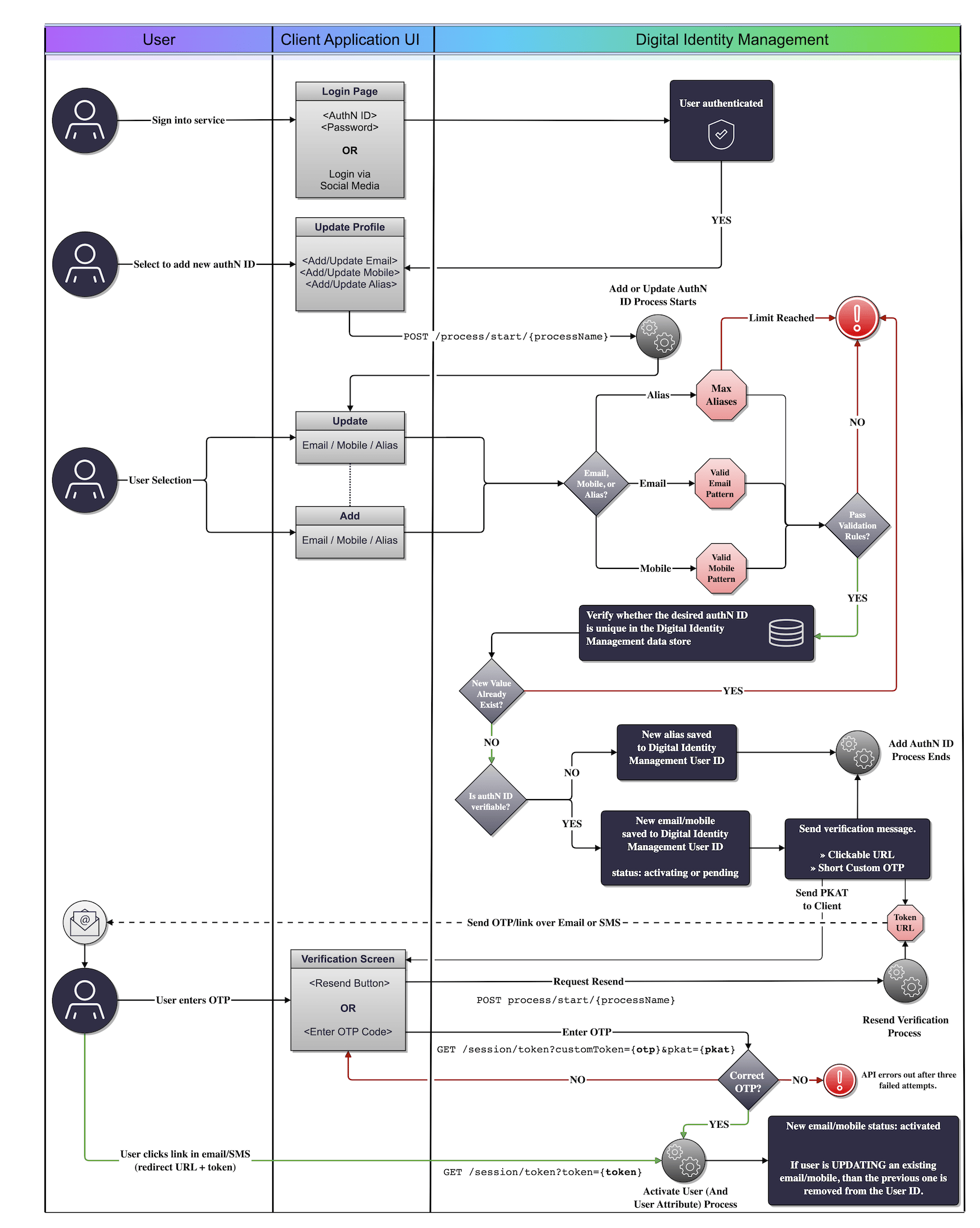
- PUT /session/token — Typically in cases where the user is anonymous. The client will need to supply the PKAT
- Send Verification Process — Typically in cases where the user is authenticated. The client needs to supply the target email or mobile directly in the initial request URL or request body.
- Authenticate User Process — If the user attempts to sign in with an unverified authN ID, the Process will issue an action token and send it that contact channel. The Process will then end without authenticating the end user.
Use Cases
The following use cases provide guided API walkthoughs of this Process for client developers:- Register a new email address or mobile number
- Change an existing email address or mobile number
- Add or update authN ID errors
- Add a new email address or mobile number
- Update an existing email or mobile
- Add or update authN ID errors