

User Authentication with MFA Flow
Preconditions- The User ID exists in Digital Identity Management.
- The user has previously created a password.
- The user has registered the required number of factors for MFA.
- A user visits the organization’s login page.
-
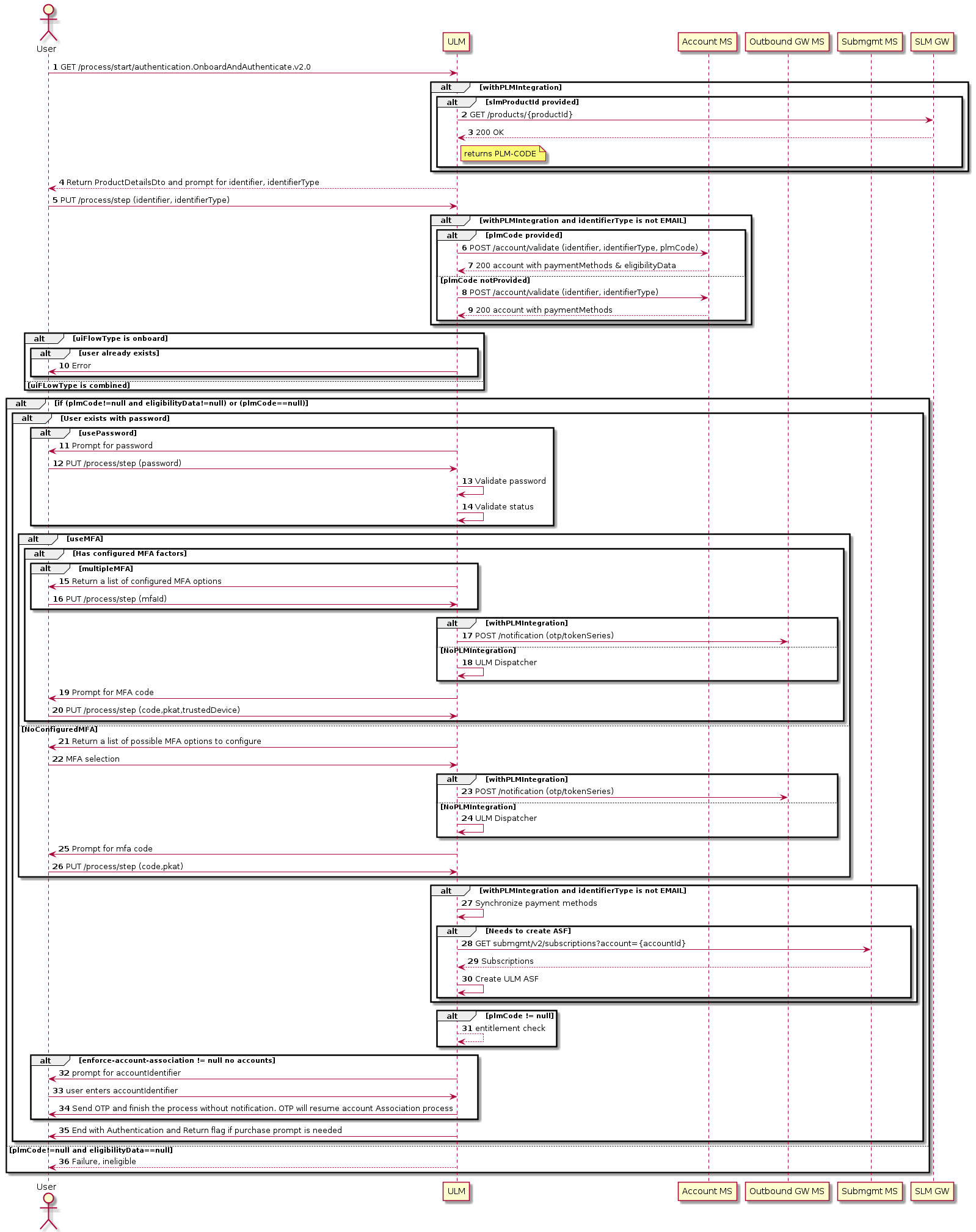
The user logs in with their email/mobile and password.
Note: If the password has expired, as defined by the
passwordLifeTimeSecondssetting, the user is prompted to update their password. - Digital Identity Management authenticates the user identity and issues a MFA challenge.
-
The user selects their preferred MFA option.
Note: If the
minMfaCountapp setting is enabled (value is greater than 0), and the user doesn’t have any factors registered for MFA, the process guides the user through the steps to register the required number of factors. - Digital Identity Management issues an OTP/TOTP verification code to the user’s selected MFA option.
- The user enters their OTP/TOTP verification code.
- The user is logged in after Digital Identity Management’s successful identity verification.
Authenticate User with MFA Challenge
Application Settings
Some of the relevant app settings for this use case are:minMfaCountverificationRequired2FAMaxRetryVerificationpromptMFAOnSetPassword